


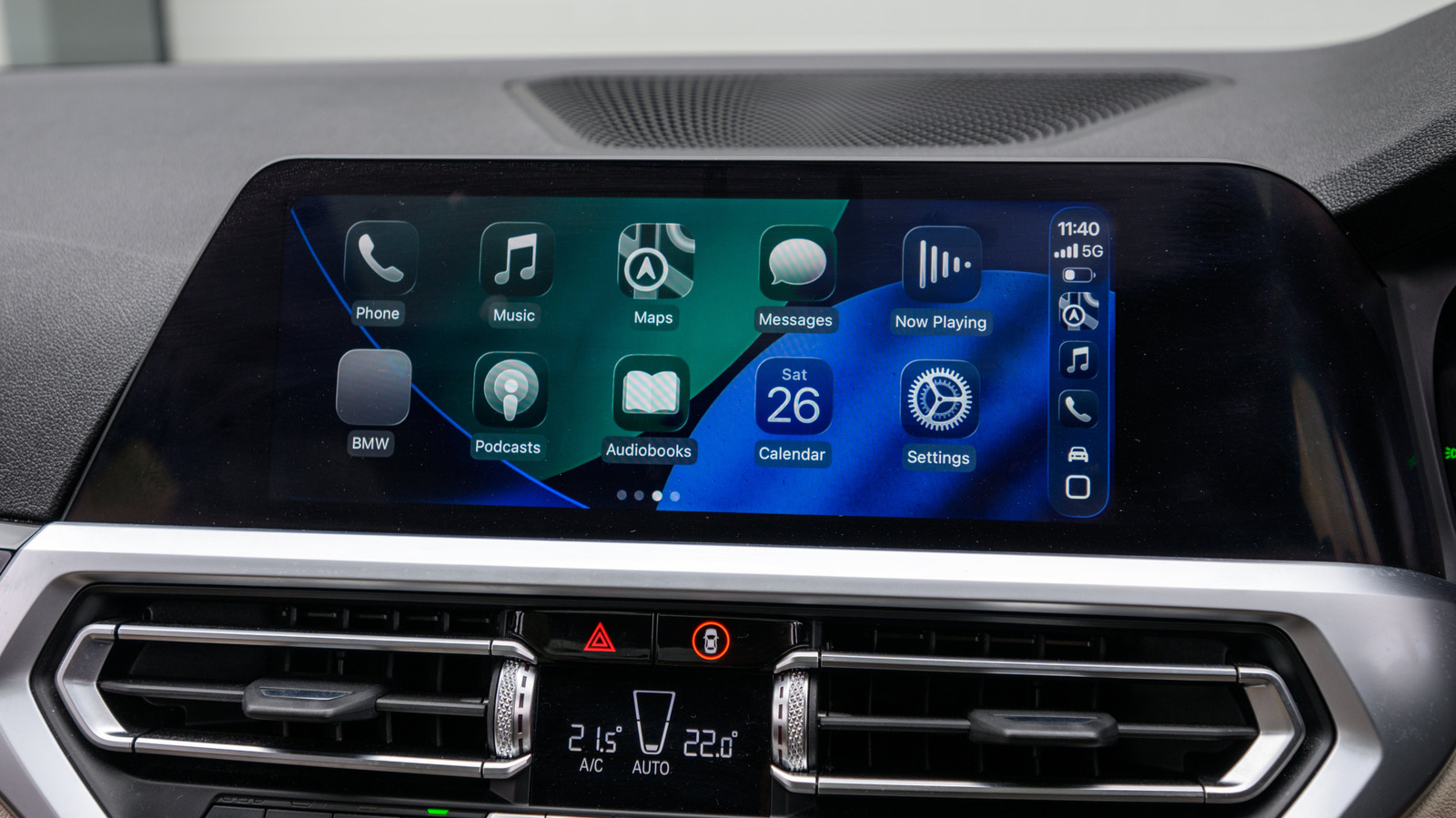
Harry Howitt/Shutterstock
Apple gave the Apple Music app a big design makeover in iOS 26, bringing in the new Liquid Glass user interface from the first beta while tweaking the visual experience along the way. But that wasn’t the only novelty in iOS 26 for the Music app. Apple released several features that users might enjoy, like the ability to translate lyrics and get help with pronunciation. AutoMix is another interesting feature that allows the app to seamlessly transition from one track to another without breaks.
But the support for pinning favorites at the top of the Library section is easily one of the best features Apple added to the Music app in iOS 26. While the feature is meant to give you quick access to the music you like the most on iPhone, it may be even more useful in the car, when playing Apple Music via CarPlay.
CarPlay already makes it easy to play Apple Music tracks in the car, supporting voice control via Siri or touch input. The steering wheel can also be used to control what’s playing, and the person in the passenger seat can always handle music playback so the driver can focus only on the road. But the support for music pins in iOS 26 brings one-tap playback to CarPlay that makes music management even safer for the driver, especially users who routinely listen to their favorite artists and playlists.
How to set up Apple Music pins for CarPlay
Since CarPlay extends part of the iPhone user interface to the car’s display, you’ll simply need to set up Apple Music pins on your iPhone, then the pins will appear in the Music interface in CarPlay. The Music app lets you pin up to six items at the top of the Library menu. The feature is similar to adding favorites to the top of the Messages app in iOS. You can pin favorite songs, playlists, and artists in the app.
Go to the Music app and touch and hold a song, album, playlist, or artist to find the Pin option for the selected media (e.g., Pin Song, Pin Album, Pin Playlist, or Pin Artist). Tap it, and that item will be added to the top of the Library tab. Alternatively, you can tap the three-dot menu when viewing a song, album, playlist, or artist to find the same Pin option. Once added, the pins will be visible in CarPlay under the Library menu, at the top of the other Library submenus, similar to the iPhone experience.
Users can pin and unpin items as they see fit. People who have specific playlists for road trips will not need to customize their Music pin setup too often. Users who like to listen to the latest music from their favorite artists can always tweak their pins before a longer trip to ensure that the songs they want to listen to are one tap away.
Extra tricks to make Music pins more useful in CarPlay
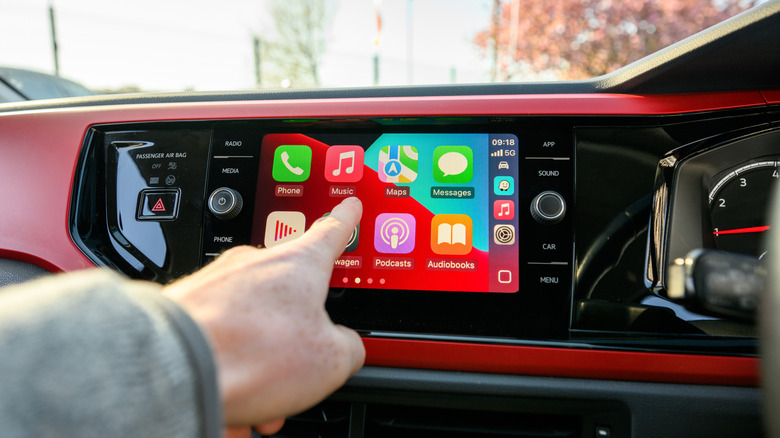
Harry Howitt/Shutterstock
Pins can improve safety while using Apple Music in the car because you won’t have to hunt down playlists and search for artists while on the road. In other words, this will reduce the time needed to find your favorite music. Since the pins appear larger on the iPhone screen than other menu items, it’ll be easier to access them in CarPlay, as the design mimics the iPhone experience.
But there’s one more thing you should do when setting up your music pins for CarPlay. Tap and hold a Music pin on the iPhone, then select Tap Action. The default action is Go to Playlist, which means you have to perform a second tap to start music playback. So you may want to choose Play or Shuffle from this menu instead. After that, a tap on the pin will start music playback, eliminating the need to tap the screen again.
Streaming Apple Music in CarPlay requires an active internet connection, as do most CarPlay apps. You’re streaming songs from Apple over the internet. This can be a problem when driving in remote areas that may lack cellular connectivity. Also, if you’re roaming or have a limited data allowance on your cellular plan, you’ll want to download your favorite music before starting your trip. Luckily, you won’t have to remember to download new tracks if you’re changing your pins often. Apple has developed an auto-download feature for pinned items. Go to the Settings app on your iPhone, open the Apps menu, then tap on Music. After that, turn on Download Pins. Keep in mind here that Apple Music will download tracks on your iPhone. You should ensure you have enough storage to accommodate larger playlists.
