


Erman Gunes/Shutterstock
We may receive a commission on purchases made from links.
Before you can use a universal remote with pretty much any device, you have to program it. Often that involves cycling through a series of program codes or button presses until you find one that works. Fortunately, with Roku devices, you don’t have to do anything so complex. Standard Roku remotes work out of the box as long as you have batteries, so you should be good to go with no pairing necessary. However, things are a little different with the Roku voice remote, the upgraded model that allows you to issue voice commands. Your voice remote may need to be programmed and paired with your Roku devices, but the good news is that learning how to program a Roku remote is pretty easy.
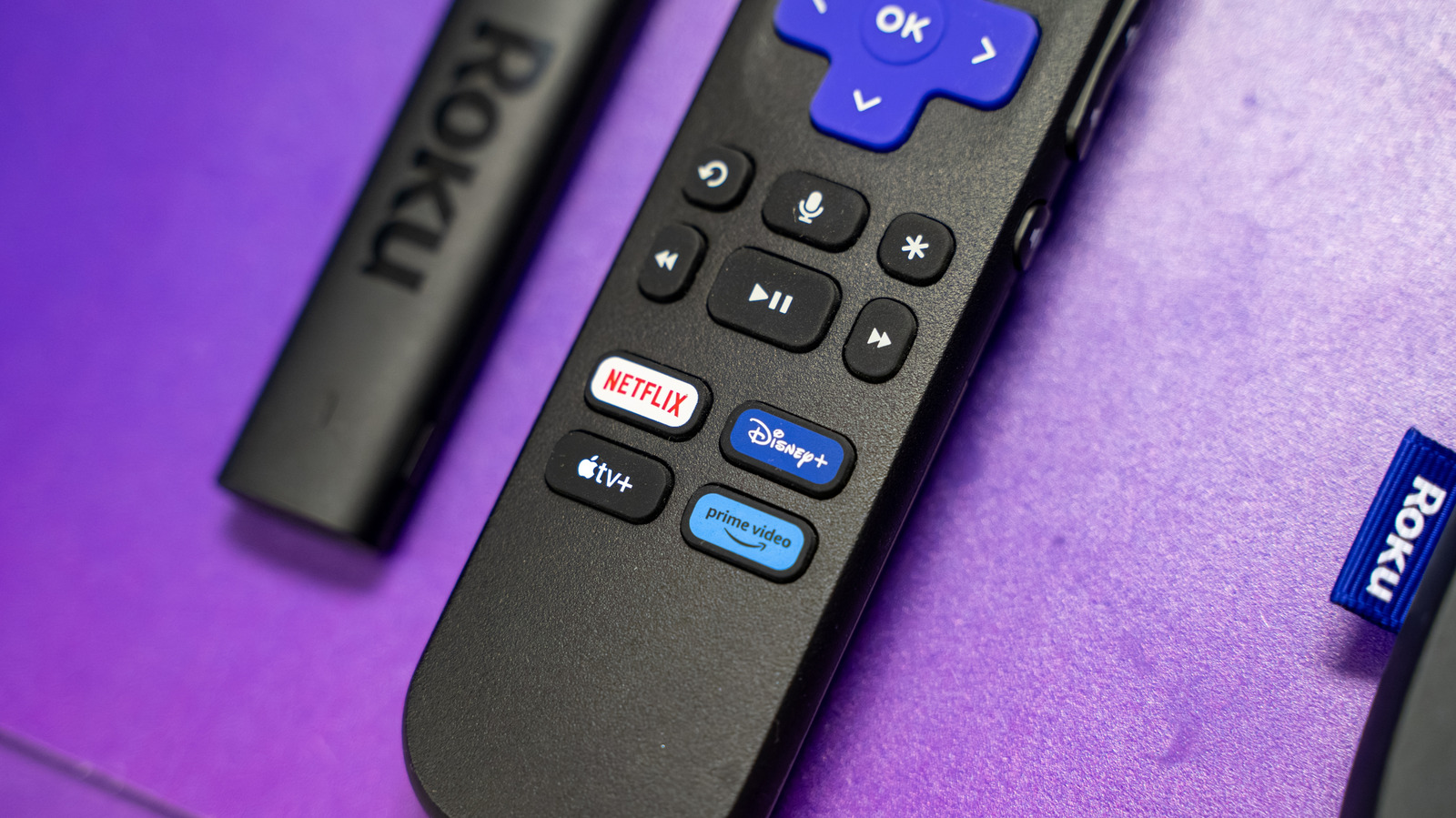
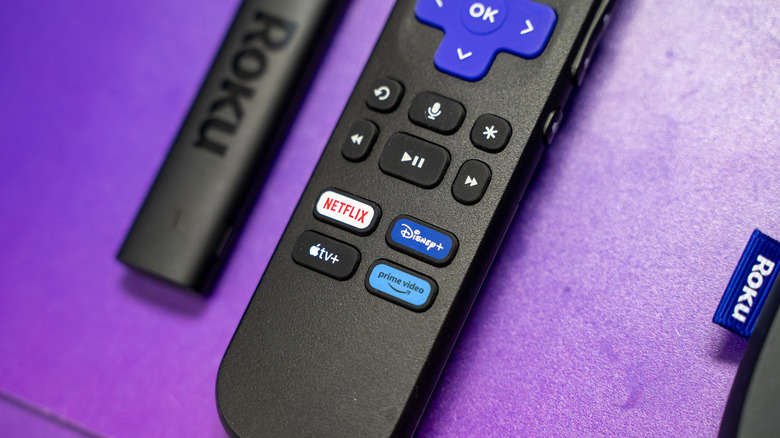
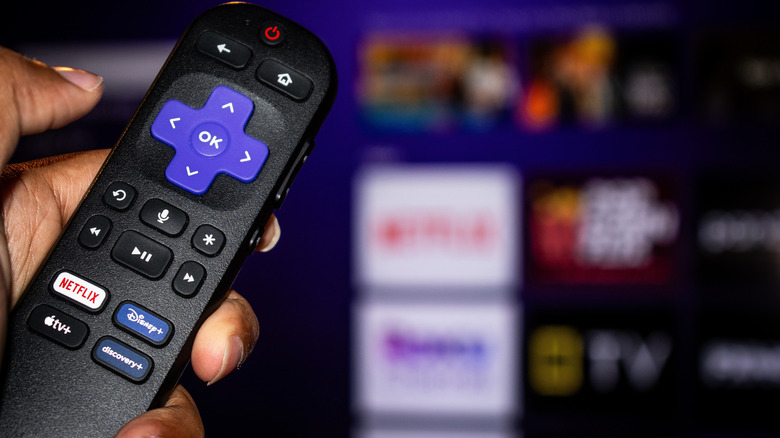
First, you’ll need to ascertain if you have a voice remote or a standard one, and determining so is as simple as looking at the buttons on the remote. If your Roku remote has a small button below the directional pad with a microphone or magnifying glass icon, then it’s a voice remote. Program your new voice remote should be quick and easy, and to get started, you’ll need to put both your Roku device and remote in pairing mode.
What if pairing fails during setup?
Charles-McClintock Wilson/Shutterstock
On your Roku, with another working remote or using the free Roku remote app on a phone, go to Settings > Remotes & Devices > Add Devices > Remote > Continue. If the remote is brand new it’s likely already in pairing mode. Follow the onscreen instructions to sync the devices. If the remote is not already in pairing mode, flip it over and look for a small button located on the back or under the battery cover. Press and hold the button for five seconds until the status light starts blinking. If it’s an older voice remote with no pairing button, you can hold the Back and Home buttons together for five seconds.
If you do run into problems, there are ways to troubleshoot. Above all, you’ll want to make sure both your remote and the device, whether it’s a Roku TV or Roku standalone player, are in pairing mode following the appropriate instructions. If that still doesn’t work, follow the age-old power off and back on tip, restarting your streaming device or TV and then starting over from scratch with the pairing process.
There is a small chance interference is causing the sync issues between devices. If applicable, make sure you move other electronics away from your Roku device, including game consoles, routers, mesh nodes, other media players and even audio systems. Try pairing again after those devices have been moved away and then once everything is connected, you can move them back. Roku support says as a last resort you can simply use the Roku mobile app on your phone.
What does the voice remote do and why does it need to be paired?
Taking a step back, before you learn how to program a Roku remote, it’s a good idea to consider which are the best and which are the worst. Moreover, with each iteration there are new shortcut buttons added and they’re permanent for as long as you have the remote — they’re not customizable — so what you see is what you get. All voice remotes, including regular voice, enhanced and the voice remote pro, have to be paired with your Roku, especially if you already have another remote connected.
There are actually a couple of voice remote versions. The regular and enhanced voice remotes look and work a lot like the basic remote, and they take replaceable batteries. The $30 Roku Voice Remote Pro has a built-in rechargeable battery, as well as backlit buttons, hands-free voice controls, and a lost-remote finder. If you want to dig into the real differences between the remote styles a good old-fashioned head-to-head pitting the Roku simple remote versus the voice remote. Really, the biggest feature is the use of voice commands to navigate Roku’s noisy UI without tapping a bunch of buttons.
