


vfhnb12/Shutterstock
We may receive a commission on purchases made from links.
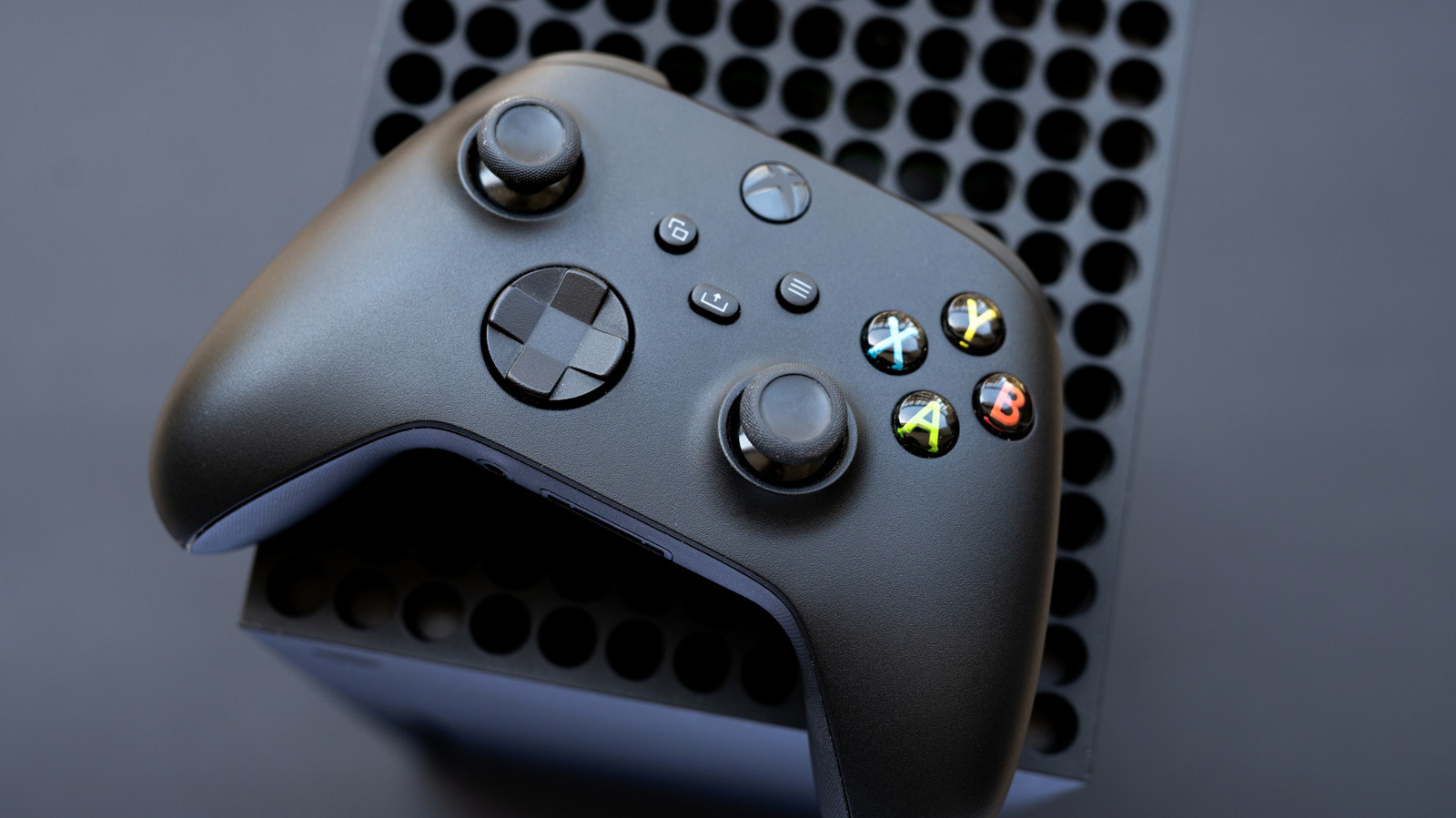
The Xbox Series X (and, by extension, the Series S) is a solid, robust console. What it lacks in exclusive titles, the Series X more than makes up for with backward compatibility and a smaller footprint on your entertainment center. However, like any console, the out-of-the-box experience might not be ideal for your specific setup.
The Xbox Series X comes standard with many audio settings. Open the Settings menu (the gear at the top of the screen), then go to General and select Volume & audio output. Under the Speaker audio and Headset audio dropdown menus, you can pick several options. Audio starts as Stereo uncompressed, but you can pick alternatives such as 5.1 uncompressed and Dolby Digital for speakers and Dolby Atmos for Headphones and DTS Headphone:X for headsets.
If you don’t know which speaker settings to use, select Audio setup in the Advanced column. The console will run different audio formats through your speakers. Highlight the one you want to test, listen to the results, and pick the format you think sounds best. You can also select Audio testing & details to see which formats your setup supports. But for the most part, you are on your own if you want to get the most out of your console.
Soundbars and subscriptions sold separately
While the Xbox Series X/Series S has plenty of potential to transform into an audio powerhouse, it’s up to you, the user, to realize that potential. You need the tools to unlock the full scope of these settings, which is just capitalism jargon for “buy the right peripherals.”
Even though the Xbox Series X can output sound using Dolby Digital and Dolby Atmos, your console will refuse to activate the setting unless it detects speakers that are compatible with these formats. This usually means buying soundbars and surround sound systems — Dolby Atmos specifically requires a home theater setup. Soundbars are less expensive and take up less space, but if you want a true 3D audio environment that puts you in the middle of the action, you will need a surround sound setup. Also, make sure your sound system is plugged into the right port (and that you’re using an HDMI 2.1 cable or later) to get the most out of the audio settings.
Headphones, meanwhile, are even more complicated. First, you need to buy the right one. Unless a headset is built for the Xbox Series X/S, you can only use it via a wired connection (which isn’t a dealbreaker, since plenty of wired headsets provide delicious audio). But even then, you are limited to uncompressed stereo and Windows Sonic unless you buy a license for Dolby Atmos for Headphones or a DTS Headphone:X subscription. So that’s an extra, potentially recurring, expenditure on top of the headphones, especially if you want 3D audio.
Proper communication is vital to a successful match
Gaming headsets let you play games without disturbing anyone else in the room or the house. Unless you play “Elden Ring” and scream in frustration because Malenia killed you for the 25th time, but that’s on you. More importantly, headsets often include built-in microphones that let you chat with allies. Assuming you can actually hear one another.
If you are a competitive multiplayer aficionado, you need to tweak your Xbox Series X’s chat settings, which are located in the Additional options tab under Advanced in Volume & audio output. The first option, Chat mixer, lets you adjust the volume of all other sounds so you can hear your squadmates more clearly. While you can mute the game entirely during chats, this setting isn’t ideal for titles that provide audio cues to locate enemies. You can also use Party chat output to change where party chat audio comes from, including your headset, speakers, or both.
Many high-end headsets include dials and buttons that let you tweak settings such as chat/audio mixing, so don’t solely rely on the Xbox’s audio options. Also, some settings don’t cooperate well with others. For instance, if you want to route all audio through the headset, you need to activate the Mute speaker audio when headset attached option in the Additional options menu. But if you do that, toggling Speakers as your Party chat output will effectively mute your teammates, rendering proper communication impossible. Be prepared for some trial and error to find your perfect audio settings.
