



RSplaneta/Shutterstock
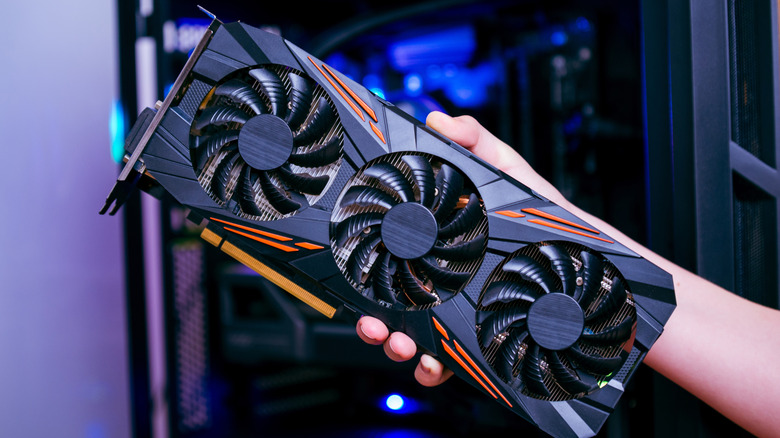
If you ask an average PC gamer how to get extra FPS in modern titles, they may recommend speeding up your graphics card with free apps and other tools, such as MSI Afterburner. Fair suggestion — doing that would likely yield a modest, single-digit FPS improvement in many games. But guess what? It would also increase your card’s power draw, thereby slightly elevating its temperature by a few degrees Celsius, which could cause thermal stress over time. So, how do you enjoy an FPS boost without overclocking your GPU?
While there isn’t a one-size-fits-all solution for improving FPS, trying a few known tweaks can help smooth out the performance of your games. Clearing debris from your PC’s interior is one quick and simple starting point, alongside updating your GPU drivers and enabling performance-enhancing features like Nvidia G-Sync. Once you’ve got those simple adjustments out of the way, you can then go into more advanced troubleshooting techniques, such as experimenting with AI-based upscaling tools to generate extra frames and enabling resizable BAR support in your system’s BIOS to minimize VRAM-related bottlenecks.
Try some basic graphics card adjustments first
Nwz/Shutterstock
If you go down a GPU overclocking rabbit hole before checking whether your PC is caked in dust, you might be jumping the gun. There’s no shame in forgetting about PC cleaning duty, but if your machine begins struggling mid-game because layers of dust are making your hardware overheat, then it’s time for some cleaning. Before attempting more advanced performance-enhancing tricks, make sure to get all the gunk out of your computer first. There’s a real possibility that doing this alone will help your games run more smoothly.
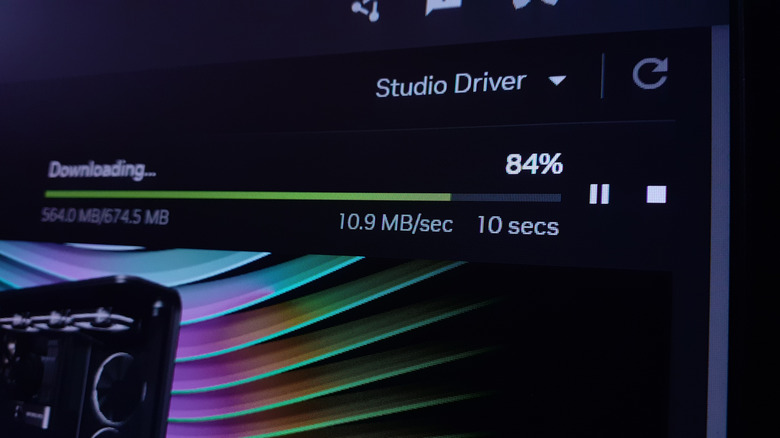
Next on your to-do list should be updating your graphics card drivers. This one is fairly easy to forget about, especially if you’ve turned off automatic driver updates. Check your graphics card’s utility tool; if the last update was months ago, that could explain why your gameplay is starting to feel like an old Flash game. You can use those same GPU app interfaces or Windows’ Device Manager to update your graphics card drivers, but you can also download driver updates directly from your GPU manufacturer’s website.
Regardless of whether you’re rocking an Nvidia or AMD card, you can also synchronize your GPU’s frame rate with your monitor’s to help prevent latency and screen tearing. If you’re an Nvidia user, navigate to the “Set up G-Sync” tab under the Display section of the NVIDIA Control Panel. There, you can enable G-Sync, select your preferred screen mode, and pick the monitor you want to apply those settings to. To enable the equivalent AMD feature, FreeSync, start by launching your monitor’s on-screen display settings. There, enable the Adaptive Sync or FreeSync option. After that, fire up your AMD app and toggle on the AMD FreeSync option under the “Display” tab.
Leverage settings and software tools for graphics card performance hacks
Nwz/Shutterstock
If those basic adjustments landed you a single-frame FPS boost, don’t go searching for a new GPU just yet. After all, we’re in the new roaring 20s, so many cards today support AI upscaling and frame generation. If you can overlook some of the tech’s visual flaws, enabling Nvidia’s DLSS or AMD’s FSR algorithms would be a safe bet for getting a significant performance boost without much hassle. Nvidia GPU users can also use the free DLSS Swapper app to upgrade a game’s appearance beyond what can be done in its vanilla display settings, although the app is also compatible with AMD cards because it also supports FSR updates.
But what if your card is ancient? What if you’re playing an older game without AI upscaling or frame generation support? In that case, it may be worth spending $6.99 on the Lossless Scaling app, which is available on Steam. This tool applies AI-driven bells and whistles to almost all hardware and games, regardless of age, to smooth out your experience via frame generation and graphic upscaling, even in games with pixel art.
If you’re a proud owner of an Nvidia RTX 30-series card (or newer) or an RX 6000-series card (or newer), your BIOS also has a trick up its sleeve: resizable BAR support. This hidden feature allows your CPU to gain access to your card’s full VRAM buffer so your rig can handle graphical assets more effectively. After updating your GPU drivers, restart your PC, then hit Delete or F2 (depending on what your startup screen says) to access your motherboard’s BIOS settings. There, hidden in the Advanced Settings tab, you should see an option called “Resizable BAR Support”. Enable it, hit the Save button, then exit the BIOS. After your PC boots normally, go ahead and run a benchmark test on a game. Chances are that you’ll notice a fair FPS improvement, all without you having to overclock your hardware or buy a new GPU.
