



Image: Simon Jary

At a glance
Expert’s Rating
Pros
- Super-crisp UHD 6K 60Hz touchscreen
- 32-inch and max 6016 x 3384 pixels
- Color accuracy
- Cheaper than Apple Studio Displays
- Clarity Fold Stand
Cons
- Hub doesn’t daisy-chain extra displays
Our Verdict
Graphic and video professionals will appreciate the higher 6K resolution of this generously sized 32-inch touchscreen display with digital-artist-friendly stand, and impressive color specs.
Price When Reviewed
This value will show the geolocated pricing text for product undefined
Best Pricing Today
Price When Reviewed
$2,499.99
Best Prices Today: Alogic Clarity 6K Touch 32-inch Monitor

$1,696.65
Buy the Clarity 6K Touch if you’re a graphic designer, video editor, illustrator, photographer, or CAD professional who benefits from maximum detail, color accuracy, and touchscreen input. Skip it if you’re a general user. The 6K premium is worthwhile mainly for creative professionals.
While Apple rules the roost with mobile touchscreens on its iPhones and iPads, it has kept a distance from touchscreen displays for its Macs. There are rumours of a touch screen slated as part of an overhaul of a redesigned OLED-screened MacBook Pro, but it was a definite case of Do Not Touch with Apple’s recent new Studio Display models.
Alogic is an Australian company that makes premium products for the Apple ecosystem and has been a pioneer in creating touchscreen displays for Mac users. It was first to market with a 4K touchscreen—the Clarity 4K Pro Touch— and a 5K, the Clarity 5K Touch. The company has now released another world first, the Clarity 6K Touch, which as its name points out takes Mac touchscreens up to a new level of screen quality.
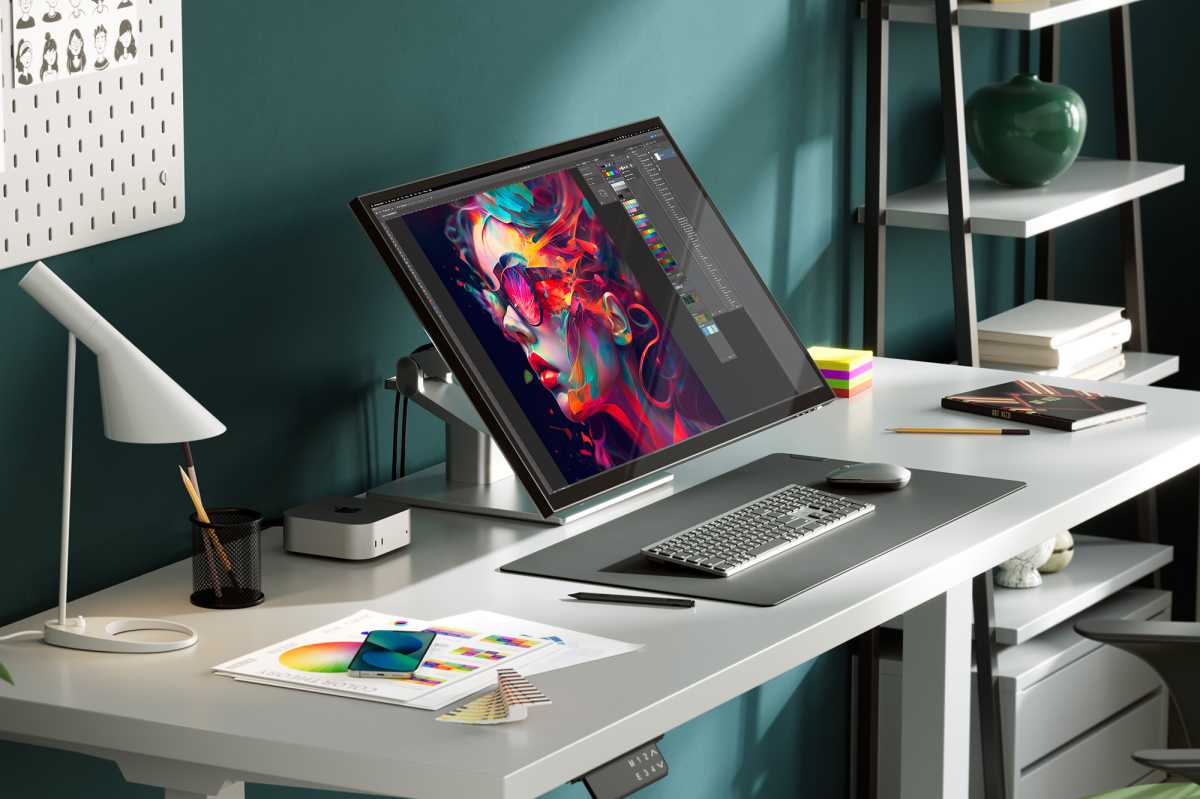
Like the previous Clarity Touch monitors, you can use the touchscreen display much like an iPad with on-screen tap, swipe, slide and pinch, and over 4,000 levels of pressure sensitivity. Alogic caught up with Apple’s Studio Display with its Clarity 5K but now goes one better. Where the Apple Studio Display has a maximum resolution of 5120 x 2880, the Clarity 6K reaches 6016 x 3384 at the same pixel density on a larger screen (32 inches vs Apple’s 27 inches).
Alogic
6K vs 5K monitors
The Clarity 6K Touch costs $2,499, compared to $1,799 for the 5K Touch. Alongside the resolution boost, you also get a larger 32-inch panel rather than the 5K model’s 27-inch screen.
The main difference between 5K and 6K displays is resolution. A 5K monitor offers 5,120 x 2,880 pixels, while 6K increases that to 6,016 x 3,384. This delivers both more screen space and greater pixel density.
A 5K display contains around 14.7 million pixels, while a 6K panel packs in more than 20 million. The result is exceptionally sharp text, finer image detail, and nearly 2.5 times the pixel count of a 4K display.
Running at the full 6K resolution can make interface elements uncomfortably small, so most users will prefer a scaled setting. The default 3,008 x 1,692 resolution strikes a good balance between workspace and readability.
For creative professionals, pixel density is the bigger advantage. A 32-inch 5K display delivers 163ppi, while the 6K reaches 216ppi—Apple’s Retina benchmark. Images and text appear noticeably sharper, allowing photographers, designers and video editors to work with greater precision.
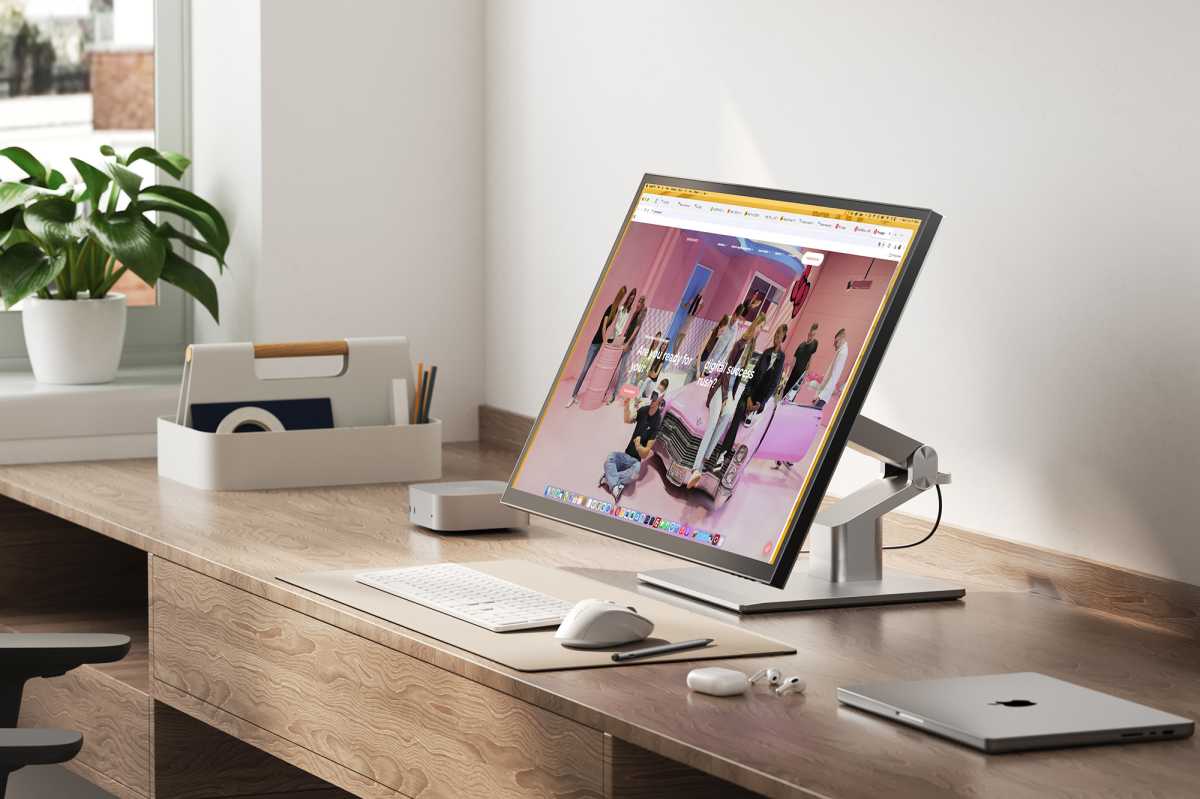
Many users may struggle to spot the difference between 5K and 6K in everyday use, but professionals who rely on fine detail will appreciate the added sharpness. The display tops out at 60Hz, which is more than adequate for creative work but less appealing for gamers.
Alogic
Screen pixels and colors
- Screen: 32-inch IPS 8-bit + HiFRC
- Finish: Gloss
- Max resolution: 6016 x 3384 pixels
- Refresh rate: 60Hz
- DCI-P3 color coverage: 100%
- Adobe RGB color coverage: 100%
- sRGB color coverage: 100%
- Contrast Ratio: 2000:1
- Delta E (dE): <1
- Brightness: 400 nits
- Touch: 10 Point Multitouch; One Glass Solution (OGS)
The key consideration when buying a display is the picture quality, and the Clarity 6K Touch is a clear winner with its enhanced resolution, vibrant colors and sharp details beating 5K rivals.
It offers 100% Adobe RGB Color Accuracy, meaning better accuracy in color-managed environments that can properly utilize the AdobeRGB color space, where the colors appear richer and more accurate. Again, this accuracy isn’t particularly important for non creative professionals but the 6K Touch is very much aimed at that level.
Delta E (dE) is the metric that measures how accurately a monitor displays colors compared to the original input source. The closer to zero the number is, the more perfect the color reproduction. It is a key metric for professionals who rely on exact color replication. The Clarity’s excellent <1 score means the difference is imperceptible to the human eye.
The Clarity supports 400 nits of brightness. You can get brighter (Apple’s Studio Display can reach 600 nits) but it should be fine for most users, although you will notice the difference to the MacBook Pro’s 1,000 nits. In fact, Clarity 6K can reach peak local brightnesses of 600 nits when in HDR mode, aligned with the VESA HDR600 standard—creating greater contrast between the light and dark sections of the picture.
The screen finish is high gloss, which helps reduce fingerprints but does suffer from reflections, so screen positioning will be important, and the highly adjustable stand is your friend in this regard. There is no matte screen option.
The One Glass Solution (OGS) technology combines the monitor’s protective layer with its input layer via a conductive medium remarkably keeps the Clarity Touch’s screen as thin as the other Clarity monitors, while maintaining the monitor’s bright picture. Lower-cost, capacitive touchscreen monitors often appear darker because of the extra layer of glass required by a touchscreen.
Design and looks
The Clarity 6K display measures 726mm wide (28.6in), 429mm (16.9in) tall and 57mm (2.25in) deep. The aluminum Clarity’s minimalist and metallic looks are very Mac friendly. With stand, it measures 726 x 493 x 321mm (28.6 x 19.4 x 12.6 inches).
It’s a 32-inch display, compared to the smaller 27-inch Apple Studio Displays. You really can feel the difference, and I’d not want to go back to a singular 27-inch after my time on the 32-inch monitor—luckily my normal setup is two 27-inch displays.
As it’s a larger screen, the extra pixels you get from a 6K display are welcome. The picture really is crisp and sharp even at this size.
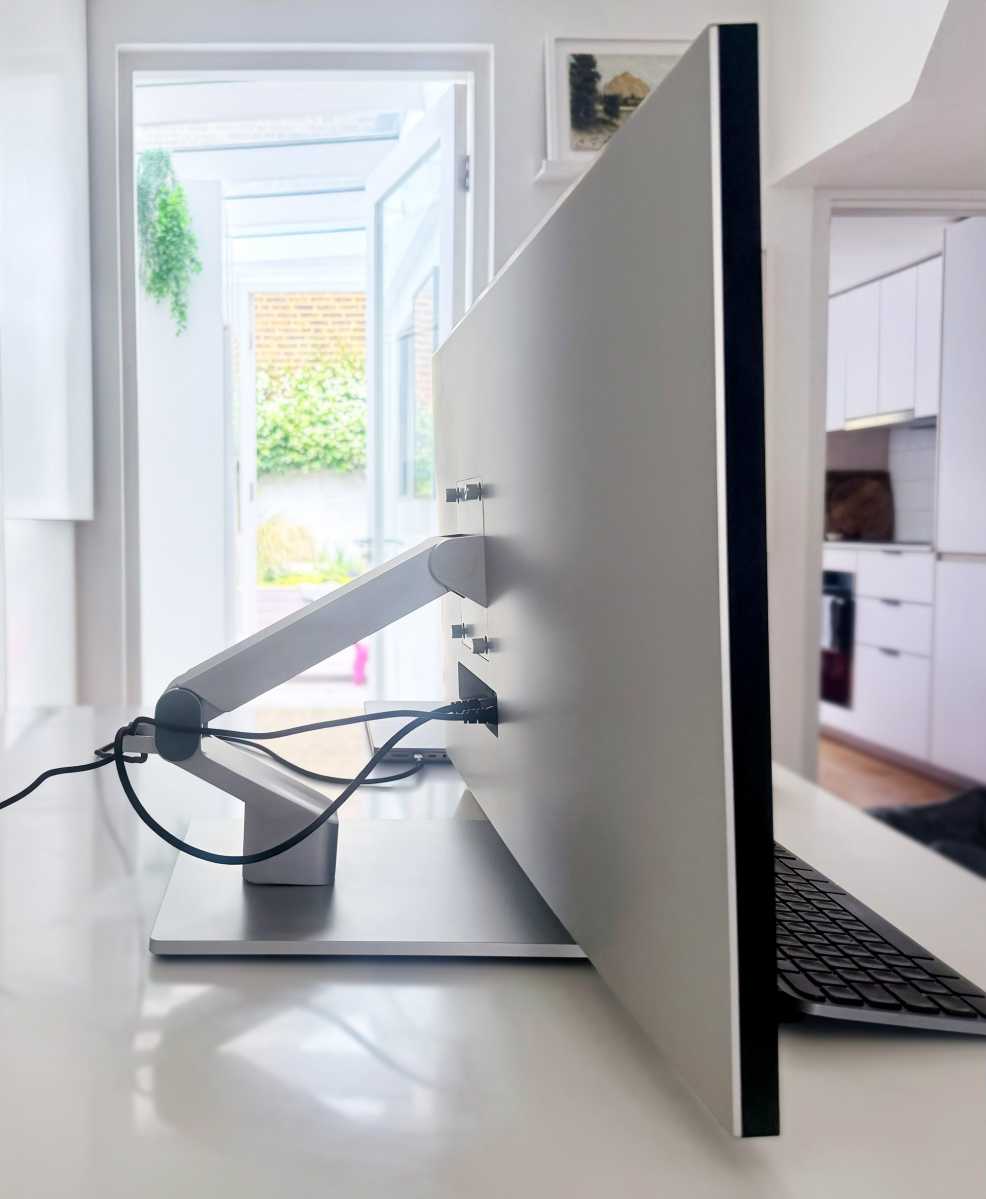
Around the back of the stand are handy magnetic clips for you to thread your cables.
Simon Jary
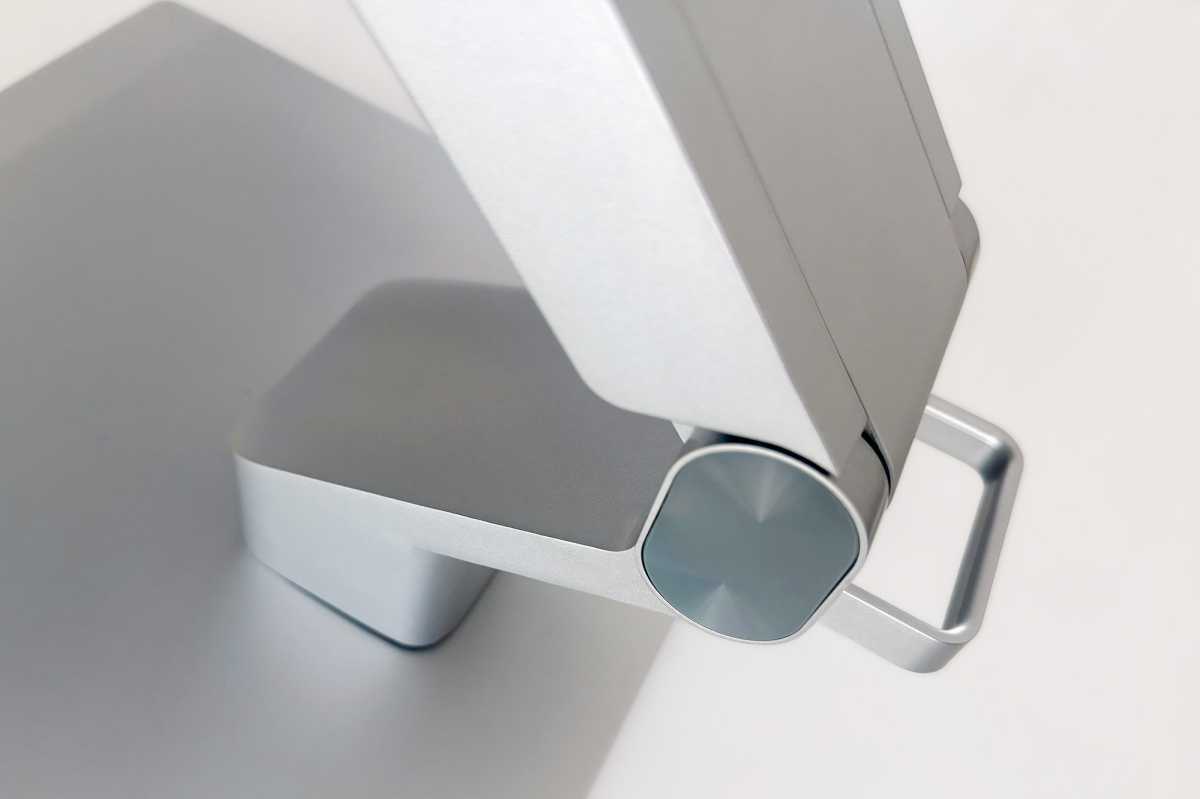
Flexible Fold Stand
The Clarity 6K ships with the articulating Clarity Fold Stand, which is super tiltable for touchscreen work. This was a $219 extra when we reviewed the Clarity 5K Touch, but Alogic now ships all its Clarity Touch monitors—from 4K to 6K—with the Fold Stand as part of the package.
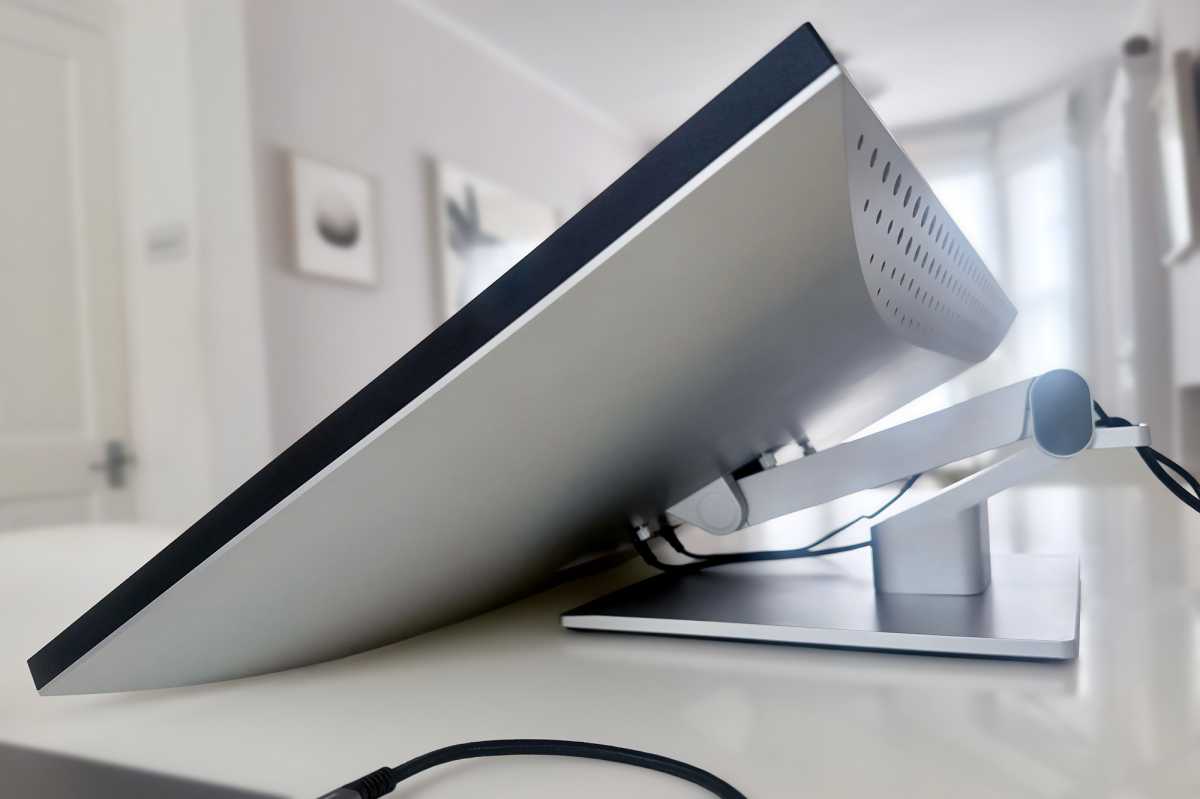
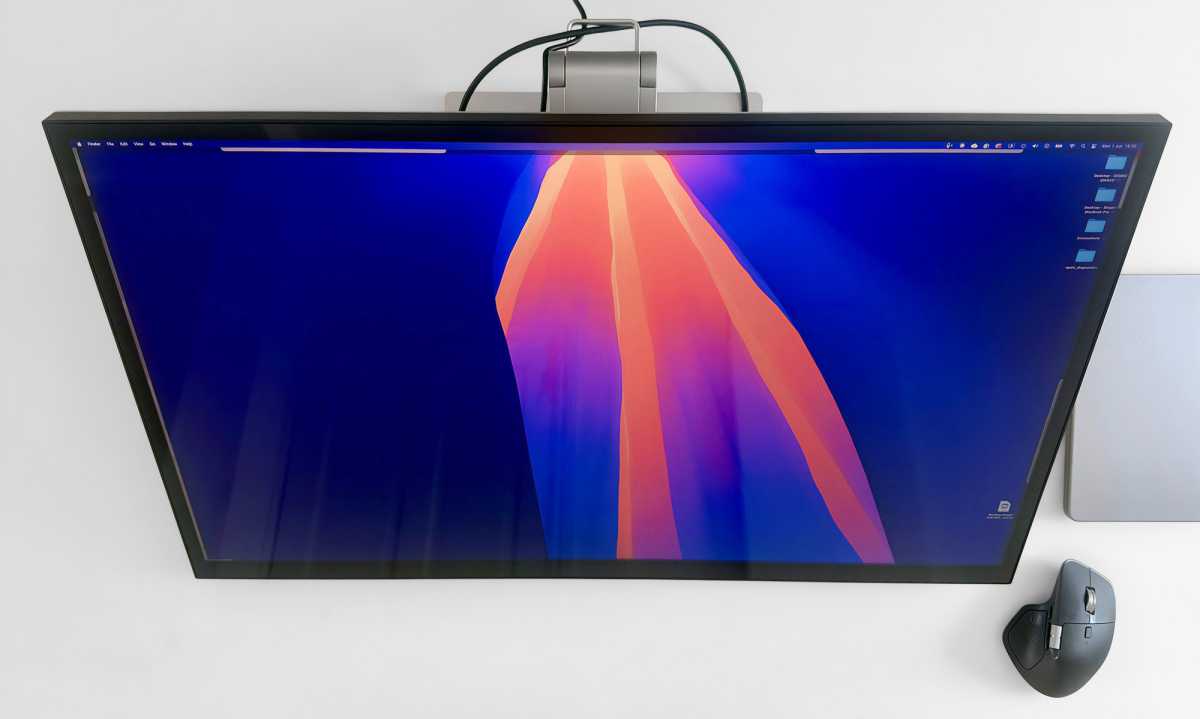
It can securely hold the monitor raised at an angle like a drafting board, or almost flat against the table to suit your creative style in comfort and optimum angle.
As such the Clarity Monitor can be transformed into an ergonomic, ultra-high-definition tablet like a massive iPad for sketching or marking up. When you are using it as traditional monitor, you can simply fold it back up.
Simon Jary
The Fold Stand’s base can rotate 360° degrees, making it easy to show your screen to colleagues in meetings.
It doesn’t go as high as other Clarity monitors with a more traditional stand, but it is height-adjustable enough for ergonomic viewing comfort.
The stand’s base and stem snap together easily and supports 100x100mm VESA mounts—coming with compatible mounting screws.
Alogic has another touchscreen range—Aspekt—that works with its own similar Fold Stand but can also work with an Omni Stand that includes a neat cradle for Apple’s Mac mini M4. We have the Alogic Aspekt Touch 32” 4K UHD Docking Monitor in testing and will publish the review soon.
Simon Jary
Touchscreen controls
Comparing the Clarity Touch and say the Apple Studio Display on specs is not the whole story as what will attract buyers is the Clarity’s precision, 10-point multitouch, One Glass Solution touchscreen, absent from the Studio Display.
There aren’t many large touchscreen displays for Mac, and Alogic claims this is the first 6K touchscreen for Mac before many had even caught up with its world-first 5K Touch.
We are used to touchscreens with our phones and tablets but using one with a Mac brings real benefits, especially for professionals such as creatives and scientists.
Popular creative programs such as Adobe Photoshop and Illustrator, SketchUp, ZBrush, Autodesk Maya, Blender and Inkscape, for example, allow for touch-based freehand input, such as drawing or sculpting. It’s a more intuitive way to fine-tune levels and effects in photo-editing or music mixing, in applications such as Adobe Lightroom and Audition, and Apple Logic Pro.
Simon Jary
Non-creatives can join in the fun, too, moving folders around, opening tabs, and double- and triple-tapping text with a finger for multitouch gestures. You are unlikely to entirely give up your desktop mouse, but using a touchscreen is a liberating experience, and you might find yourself pinching and swiping your standard screen after some time with the Clarity Touch.
You can use your fingers or any capacitive stylus to interact with the onscreen content. The Clarity 6K Touch is compatible with any MPP 2.0 styluses, such as the $119.99 / £69.99 Clarity Active Stylus Pen 2, which boasts 4,096 levels of pressure sensitivity, tilt sensitivity, a configurable quick-action button, and USB-C charging. You can magnetically place it onto the front of the display for easy access.
You can buy touchscreens with greater levels of pressure sensitivity—the smaller and more expensive Wacom Cintiq Pro has 8,192 levels of pressure sensitivity—but 4,096 is fine for most professional applications. Most hands can’t consistently distinguish between 4K and 8K levels of pressure anyway, but if you want more you’ll have to pay for it.
MPP 2.0 is a standardized stylus input protocol developed by Microsoft. Limitations in some programs means that the pen’s built in digital eraser doesn’t work with all applications, unfortunately. The Clarity 6K Touch isn’t compatible with the Apple Pencil.
Using the stylus, you should achieve smoother handwriting and sketching. The stylus detects the angle it’s being held at, which is useful for shading and precision drawing. You can even rest your palm on the screen without interfering with the pen input.
If you fancy two Clarity 6K Touch screens, you are out of luck as a Mac user, unless you are using two different computers. While Windows will support two touchscreen monitors out of the box (in Extended mode), the Mac is having none of it. That’s not to say you can’t line up the 6K Touch with an $749 / £999 Clarity Max 32-inch Monitor for a dual-screen setup that looks fantastic.
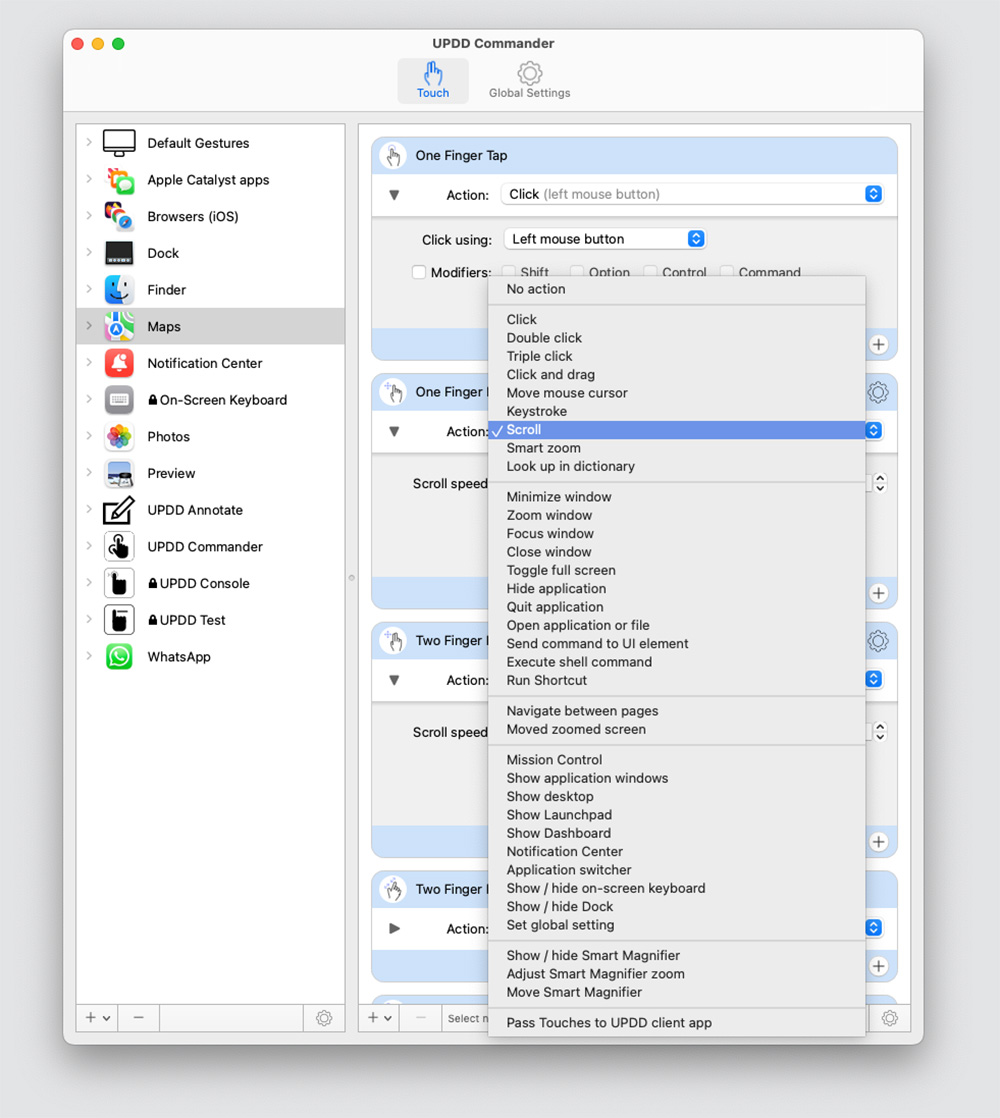
Setting up the touchscreen requires some software installing, System Settings setting, and possibly fiddly configuration software clicking. Alogic includes a link to the Base-Touch UPDD Mac touch drivers (via QR code in the manual and a link on the product page), and that comes with some online instructions, but I still had to reinstall and play around a bit despite installing the same for previous touchscreens.
To be fair, Alogic’s tech support is excellent, and some of my missteps were fixed with a reboot or by unplugging the display for a minute or so and then reconnecting.
Simon Jary
No webcam
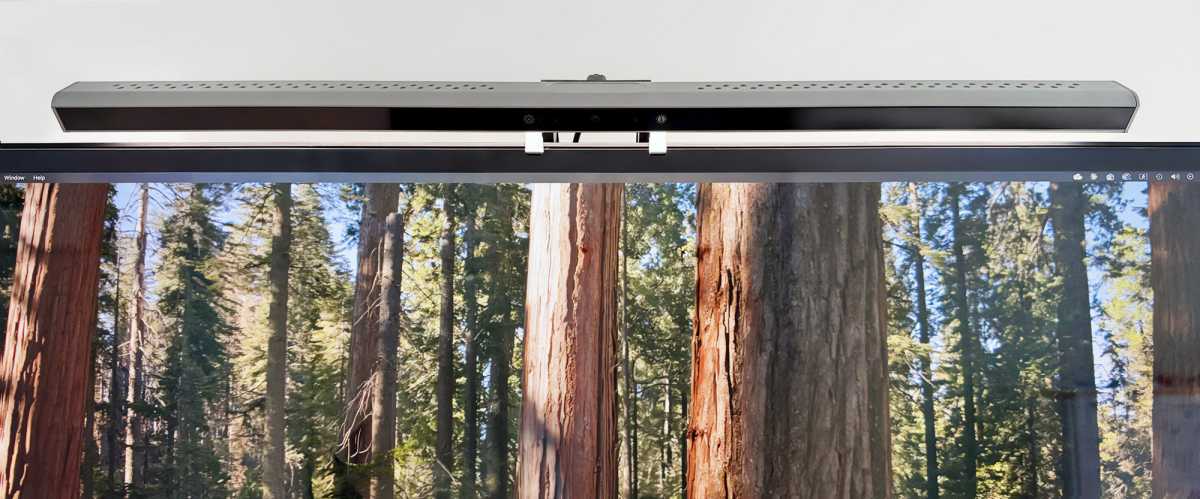
Alogic presses the benefits of its Illuminate USB-C Light Bar with 4K Autofocus Webcam, pictured above, rather than building a webcam into the Clarity 6K Touch. As the monitor can be tilted right back to lie almost flat, you won’t be keeping the light bar on all the time but placing it on top when it’s required.
The 12-megapixel webcam sits in the middle of a 19-inch LED light bar. Picture quality is excellent with rapid focus, and you can adjust brightness and color temperature adjustment via a cool-looking wireless remote-control puck. A magnetic cover fits over the webcam lens when you want some privacy.
The Light Bar webcam costs $189.99 / £119.99. You’ll save money but lose the useful light bar by choosing one of our recommended best Mac webcams instead.
Either way, as it is a separate gadget, you’ll need to sacrifice another of your computer’s USB-C ports for connect a webcam as the monitor itself has just the one USB-C port in its hub, and you need that to connect to your Mac to get the touchscreen functionality. Instead, you could choose to connect the webcam to one of the monitor’s USB-A ports, although you’ll need to invest in a USB-C to USB-A adapter cable.
Simon Jary
Built-in multi-port hub and power
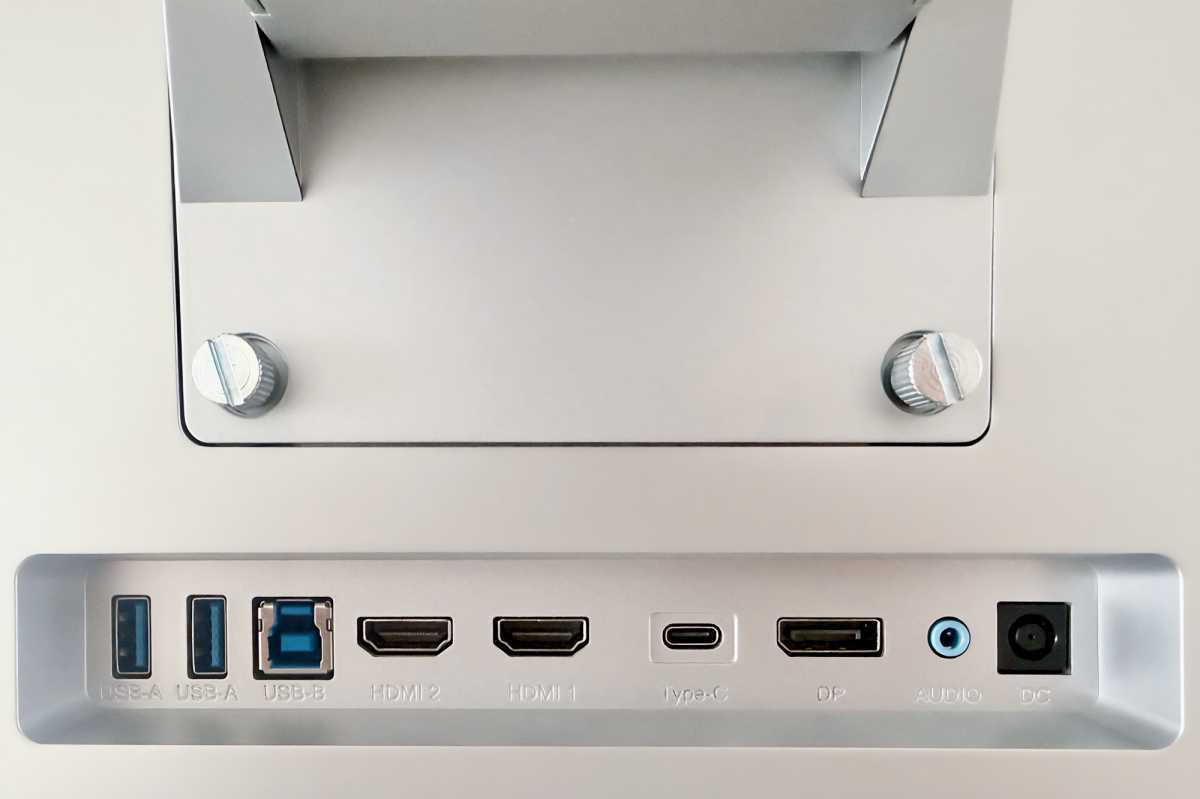
The back-mounted hub includes a USB-C upstream port that supports DisplayPort 1.4, plus an upstream USB-B port, and two USB-A downstream ports, as well as a DisplayPort 1.4 and two HDMI 2.1 ports, and a 3.5mm audio port. It’s the same as you’ll find on any of the Alogic Clarity monitors, and it’s looking a bit dated. Indeed, we noted its overabundance of legacy ports back in 2022.
You connect from your Mac to the screen via either the USB-C, USB-B, DisplayPort 1.4 or one of the HDMI 2.1 ports. But connecting via the video ports will not allow the touchscreen to work, so you can forget these. You paid extra for the touchscreen, so you are going to want to use it!
Using USB-C or USB-B, it can connect to your computer for not just the display but also charge a laptop at up to 90W at the same time. This up from 65W on the earlier Clarity monitors and much more able when connected to a MacBook Pro. Powering your MacBook from the monitor will free up that Thunderbolt port you might be using for the webcam, although all of Apple’s latest laptops feature a separate MagSafe 3 power port.
While the Clarity Touch’s port hub looks impressive on paper, much of it is superfluous. To use the touchscreen to its full potential you’ll really need to use the one USB-C slot. (You could use the USB-B port but the USB-B to USB-A cable is not much use with a modern Mac. As you can’t daisy-chain extra monitors from the Clarity, the three dedicated video ports aren’t doing anything. Indeed, the monitor’s two HDMI 2.0 ports don’t have enough bandwidth to deliver smooth 60Hz video.
Alogic’s other touchscreen monitor, the Aspekt, has a much more modern set of ports on its hub.
If the computer is connected to the USB-C port on the display, the USB-A ports will operate at a plodding USB 2.0 (480MBps) speed because the video traffic shares the USB-C cable with the USB data. They are fine for a keyboard and mouse if you aren’t a wireless input user, as most of us are these days. The Clarity monitors come with three cables: USB-C to USB-C (5Gbps), HDMI-to-HDMI, DisplayPort-to-DisplayPort and, curiously, USB-A to USB-B.
The USB-C connection is the most important, the dedicated video ports don’t make much sense with a touchscreen, the USB-B port is an oddity for legacy devices only, and the USB-A ports are low powered.
Alogic explains that there are situations where the USB-B comes in handy: a school might have a desktop permanently connected to the Clarity via DisplayPort & USB-B, while allowing students to connect their own laptop via USB-C. This setup allows for both devices to access Clarity’s USB hub (such as a connected Mouse & Keyboard) and touch functions without replugging cables. But for most Mac professionals that the Clarity 6K is aimed at, USB-B is not going to offer much.
Where the hub does come in useful if you connect a webcam, which you can connect to the monitor via USB-A as suggested above.
Decent speaker surprise
Alogic’s Clarity display features two 5W speakers. These are fine for video calls and while they won’t excite audiophiles I found them superior to most monitor (and desktop Mac) speakers—although they do lack bass. The built-in 3.5mm audio jack can be used to connect external speakers if you desire a fuller sound. Of course, you could use a decent wireless speaker setup, too.
Simon Jary
On Screen Display
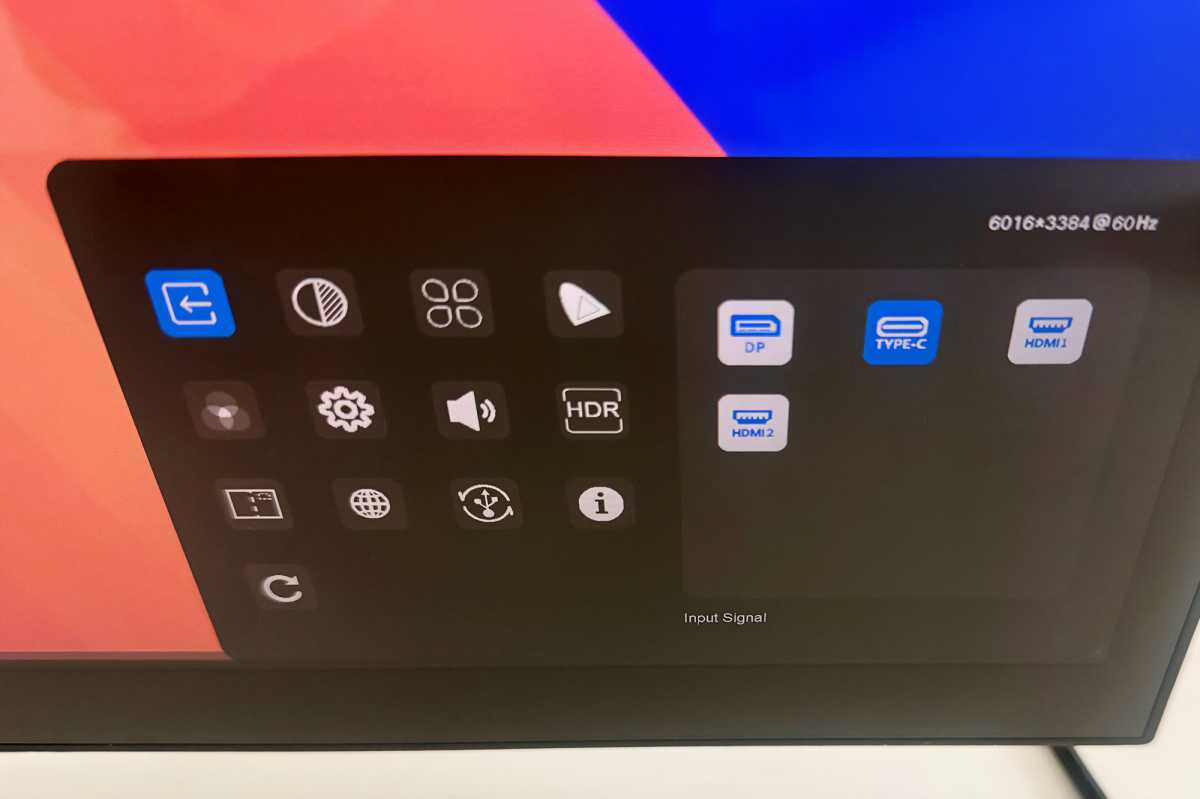
Like so many monitor makers, Alogic hides the physical controls for the On Screen Display (OSD) underneath the bottom edge of the screen. I’ve always found these fiddly and with no marking they might confuse even a Braille reader—push the wrong one and you can easily yet inadvertently power off the monitor. The same company’s Aspekt 4K Touch monitor’s OSD is brought to the screen with a two-finger left swipe for the bottom-right corner—much easier.
Once the OSD is showing, things become much easier with a touchscreen. No more fumbling under the screen for the up or down button, you can just use your finger or stylus to choose and adjust the setting.
The usual suspects are included: Input Source, Brightness, Contrast, Color Gamut, Volume, Sharpness, HDR, Temperature, Gamma, Saturation, and so on.
Simon Jary
Price
The Alogic Clarity 6K Touch 32-inch monitor is priced at $2,499. That’s $700 more than the 32-inch 5K Touch and $800 more than the 32-inch 4K Touch model (which features a webcam). In the U.K. it costs £2,199. While it’s certainly not a budget 5K display, it is reasonably priced for a large ultra-high-resolution touchscreen.
Artists might prefer the more pressure-sensitive delights of the Wacom Cintiq Pro (8,192 levels of pressure sensitivity, compared to the Clarity’s 4,096), but that only 27-inch model costs a whole bunch more at $3,499 / £3,249.
Note that the base Apple Studio Display costs with the Studio Display XDR model a whopping $3,299 / £2,999 with a more basic stand. Both are 27-inch monitors with no touchscreen functionality.
Read our full roundup of the best monitors for Mac.
Should you buy Alogic Clarity 6K Touch?
The Alogic Clarity 6K Touch is a welcome ultra-pixel-density enhancement to the limited Mac touchscreen market. Graphic and video professionals will appreciate the higher resolution of this generously sized 32-inch touchscreen display with digital-artist-friendly stand, and impressive color specs. In fact, the 6K screen is worth it even without the touch functionality, it’s so crisp and sharp.
Best Prices Today: Alogic Clarity 6K Touch 32-inch Monitor
$1,696.65
Author: Simon Jary, Contributor, Macworld

Simon has over 30 years of expert experience testing and reviewing ever-smaller and more powerful tech accessories, from USB-C and Thunderbolt docks to chargers, batteries, hubs and adapters. A former Editor of Macworld, he has contributed to PCWorld, Tech Advisor and TimeOut, as well as national newspapers such as The Times, Independent and Telegraph.
