


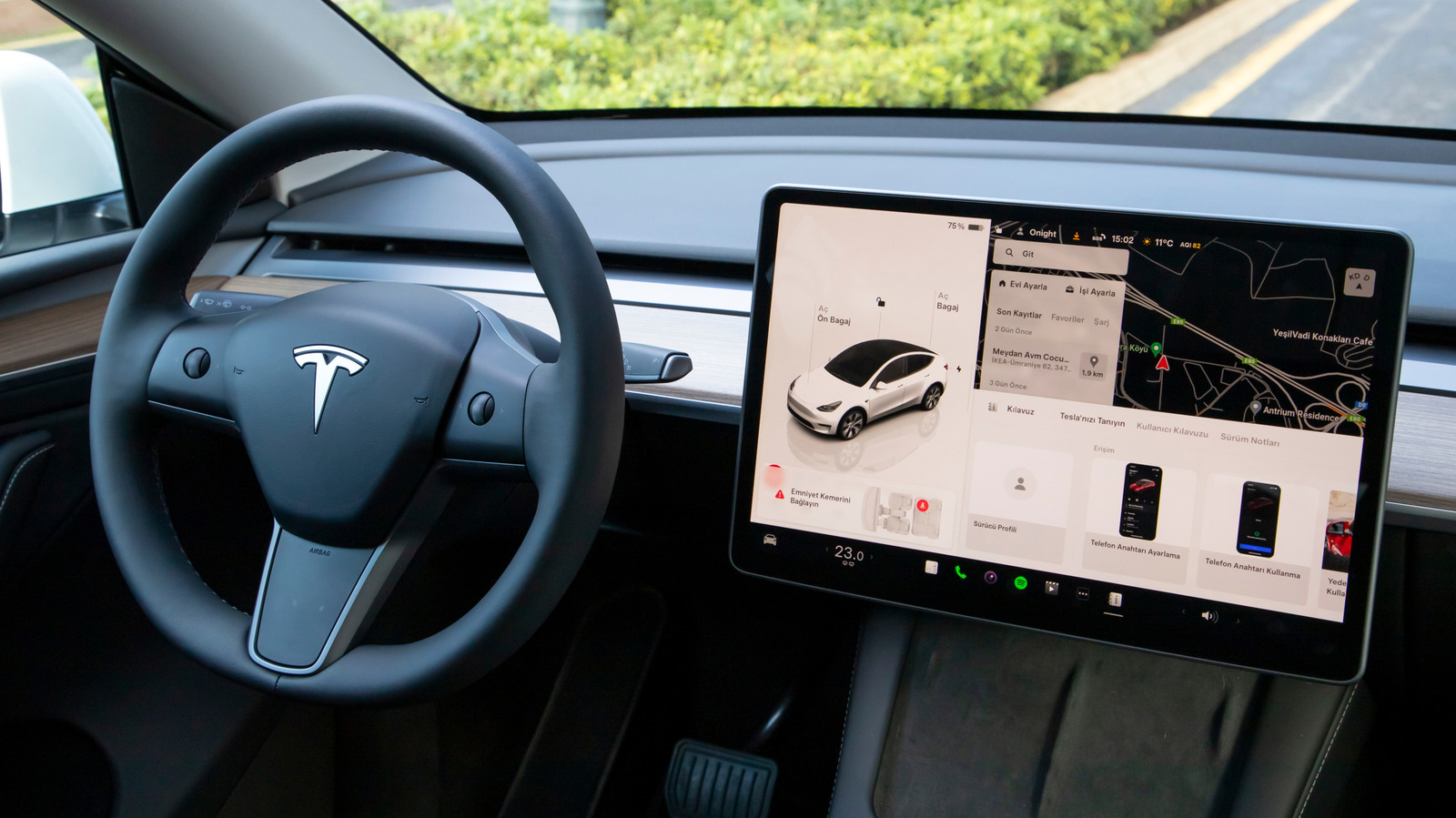
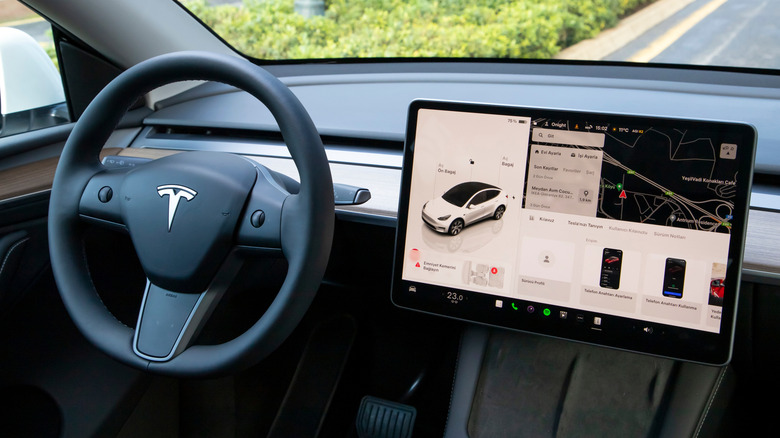
emirhankaramuk/Shutterstock
Driving an electric vehicle can save you money on gas, but even in a Tesla, your audio output still matters. You may have chosen one of the company’s EVs for its fast charging and long range, but several Tesla models include audio setups worth taking advantage of; for example, certain premium Model 3s can deliver up to 560W of power. Many Tesla audio systems can deliver serious sound, and here’s how to get the most out of one.
When it comes to audio in a Tesla, users should familiarize themselves with their vehicle’s Media Settings, which can offer equalization (EQ) and immersive sound (adjusts the soundstage for surround sound). Tweaking these settings can boost your sound profiles, much like certain settings can improve audio quality on a Samsung phone. We’ll show you where to find these settings and share a couple of quick solutions if you’re experiencing audio issues.
These solutions mainly involve a display refresh, but software updates can also help. One peripheral can also help with audio, as can a particular streaming service. There are numerous pros and cons to buying a used Tesla, though the sound system likely falls more into the former than the latter. If you’re expecting a little bit more bump and shake from your Tesla’s audio system, the tips below can be a good starting point.
Getting started with Tesla Media
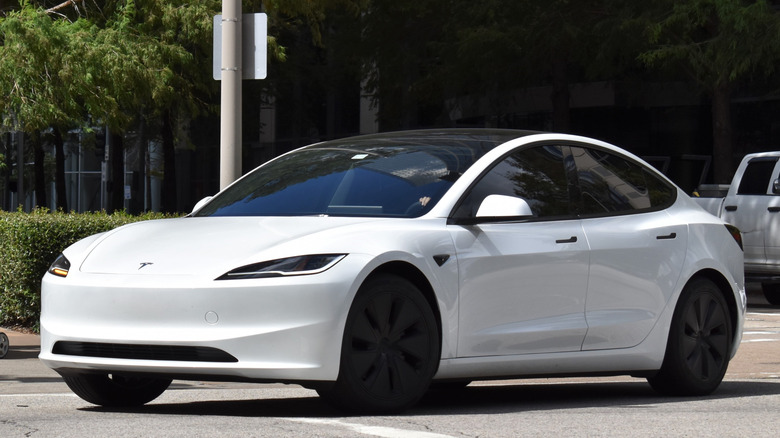
Artistic Operations/Getty Images
One of the first ways to adjust the audio in your Tesla is to start with the Media Settings. In a Model Y, for example, users can either navigate to Controls > Audio or tap the settings icon above their volume controls to access it. Within this menu, Tesla users can tweak several features, with the main one being Tone. This is essentially your EQ. Users can drag the sliders to adjust several frequencies, including Bass, Bass/Mid, Mid, and more.
Try boosting Bass by +2 and Treble by +1 or +2 for more body and detail. With Cybertrucks, it may be wise to go easier on the Bass. If you have the premium audio package, you may also have an Immersive Sound option. An adjustable slider lets you set it how you want, but there is also an Auto option that adjusts based on the media being played. Try experimenting, as different genres may require different levels.
For example, one user on Reddit recommends boosting the 5.5 and 7.5 frequency bands several levels, boosting the 6.0 band a couple of levels, and then tweaking the 4.0 and 6.0 bands a little. Modifying frequency ranges can be subjective, so experiment to see what works best for your ears. You can also get further mileage from your Media Settings by tweaking the balance controls, which can help focus the sound in one location.
Additional tips and solutions to try
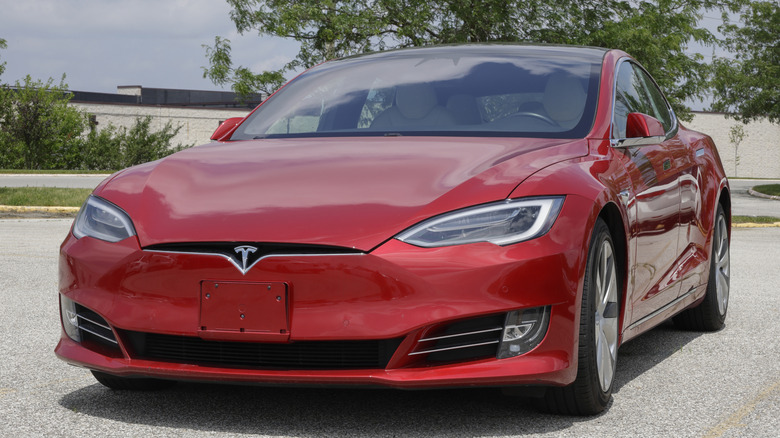
Jonathan Weiss/Shutterstock
A cool thing about Teslas is that they support lossless audio like FLAC and WAV from a USB drive, but those with a subscription to the Tidal streaming service can also access high-quality audio through an Individual plan. If you’re not familiar, lossless is essentially CD-quality audio, and we explain it in more depth as we question whether some users can even tell the difference between Hi-Res and lossless audio. Remember, other streaming services also let you change audio quality.
For USB, it’s as simple as using a FAT32-formatted drive and keeping your music in a folder in the root directory (the top-level folder on your drive). You can also use the USB key that likely came with your vehicle, and a USB hub can be one accessory that makes your Tesla feel brand new. If you’re truly concerned about audio, going the USB route may provide better sound than streaming options, since you no longer need to worry about Bluetooth potentially compressing the audio further.
If your Tesla is experiencing audio issues, a Scroll Wheel Reset may provide a quick fix if you have too much static or clipping. Make sure the vehicle is in Park and then hold down both scroll buttons on the steering wheel. Let go when the screen turns black or restarts. This is also good to know if your touchscreen glitches. Software updates may also help, though your vehicle should download them automatically. Check your manual for more info.
