


dennizn/Shutterstock
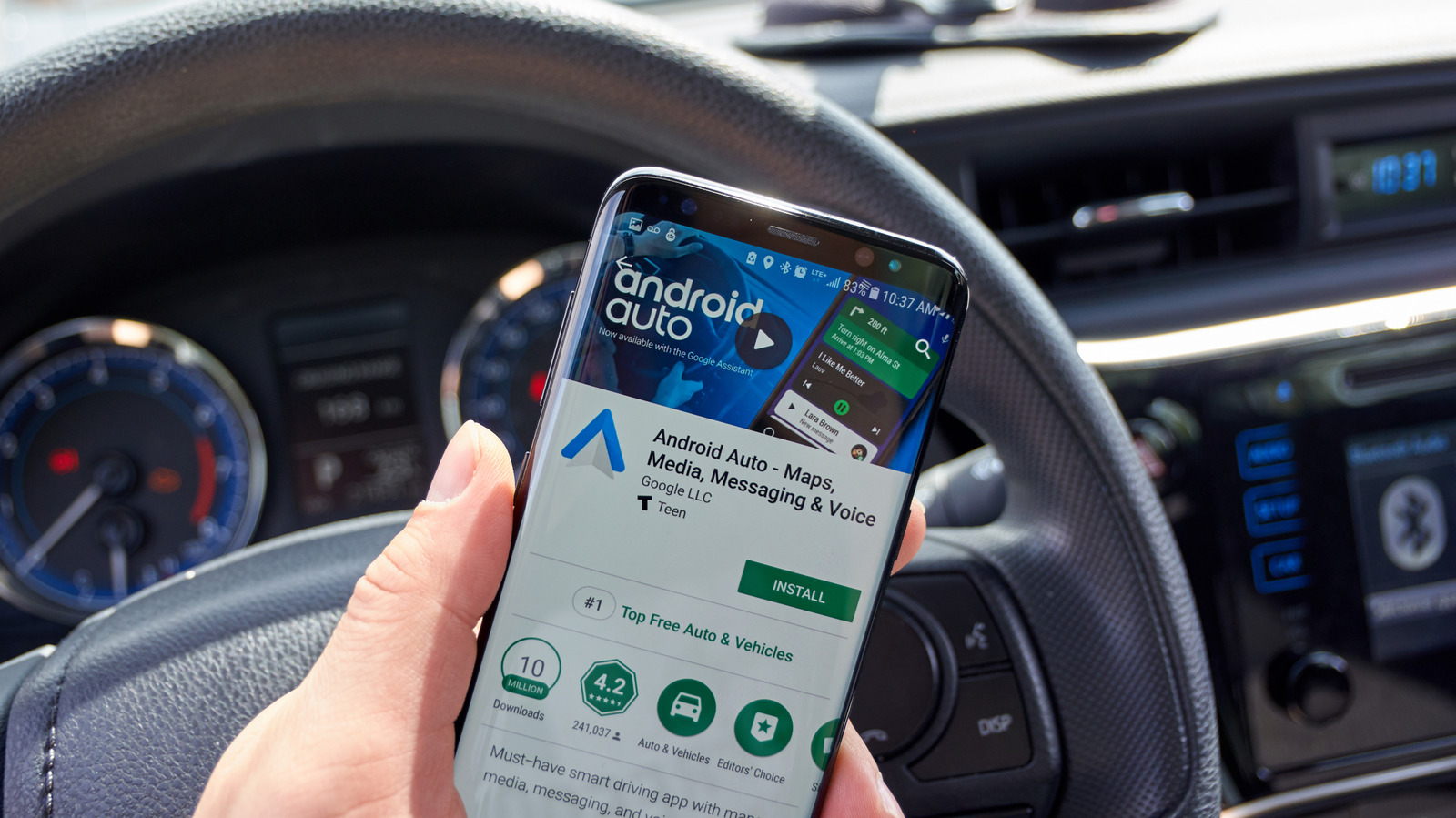
The easiest and fastest way to connect a new device to Android Auto in your car is to plug it in with a USB cable. However, that means choosing the right cable, keeping it in your car, and cluttering your dash with wires. Instead, you could just connect over Bluetooth. It’s fairly simple, but you’ll need to pair your phone or device with your car’s infotainment system before you can use Android Auto. The exact steps vary by vehicle brand; each car manufacturer has a different process for pairing phones and mobile devices.
Before you do anything else, make sure Android Auto is updated to the latest version on your phone. You can search for it in Google Play, or find the app page here. Next, pair your phone with your vehicle; if you’ve already done that, you can move on. You should be able to visit the settings on your car’s infotainment system and find a “Bluetooth” or wireless connections menu. In that menu, locate the option to pair your device; it will usually show on-screen instructions once you start the process. If your car natively supports Android Auto, Google explains you can press and hold the voice commands button to bring up the necessary pairing function. Also, make sure Bluetooth is on so your vehicle can find it.
On the first run, Android Auto should start automatically and connect to your vehicle to show your phone’s screen. If not, tap the Android Auto icon on your vehicle’s display or open the app on your phone.
What to do when Bluetooth won’t connect or drops out
Topuria Design/Shutterstock
There are actually quite a few common Android Auto problems that users encounter, from compatibility hiccups to wireless connection issues, and some of those issues even persist when plugging your phone in via USB. If you do encounter a problem and Bluetooth won’t connect, don’t give up just yet.
Before trying other options, make sure your phone and vehicle are compatible. Android Auto “works across 500 models,” but that doesn’t include every car infotainment system. Your phone also needs to meet specific requirements. That includes a device running Android 11 or newer, mobile-data access, 5GHz Wi-Fi support on the phone, and several functions enabled during setup, like Bluetooth, Wi-Fi, and location services.
If your car and phone are compatible, try turning Bluetooth off and back on at both access points: the vehicle and the phone. Bluetooth will always be unreliable because of potential interference, so expect it to be finicky. Other fixes include force-stopping the Android Auto app on your phone, clearing the app cache, and restarting your phone. Restarting your vehicle’s infotainment system might also help, which could be as simple as powering it down and back on. You can also try a wireless Android Auto adapter or dongle, which could improve the wireless connection between your vehicle’s system and your phone.
