



Image: IDG
Summary created by Smart Answers AI
In summary:
- Macworld explains how to monitor your Mac’s temperature using built-in tools like Activity Monitor and Terminal commands, plus third-party apps like TG Pro and Fanny.
- Proper temperature management prevents overheating damage and sudden shutdowns, with safe operating ranges between 50°F-95°F ambient temperature.
- Key methods include checking CPU temperatures, controlling fan speeds, and identifying energy-intensive applications that generate excessive heat. Detailed instructions are provided below.
While people are at the greatest risk from high temperatures during the summer season, your Mac can also be at risk. (People can be water-cooled, and no current Mac offers that option, though some have tried.) An iPhone or iPad will warn you when it detects it’s too hot before shutting down, while a Mac may simply suddenly power off. If it doesn’t power down, you may be running it too close to its maximum capability and putting a lot of additional wear in the process on components that might fail later during other seasons.
Knowing the temperature is one thing. The other is: how hot should your internal components run? Apple says you should only use a Mac when the ambient temperature–the temperature around you–is in the range of 50°F to 95°F (10° to 35°C) and 95 percent or lower humidity.
Internal components produce far more heat than the ambient temperature, with around 100°F or 40°C often the minimum at which they operate in normal indoor circumstances. CPUs, GPUs, ports, and other elements shouldn’t exceed about 192°F (89°C) for extended periods. At 212°F (100°C), the boiling temperature for water at sea level, you should either figure out what energy hogs are making your computer work that hard or shut the system down for a while. (Hint: It’s almost always a browser.) You can use the Activity Monitor app in Applications > Utilities to look at Energy Impact in the Energy column for more particulars.
Monitoring the Mac’s temperature
Modern Macs have an inordinate number of power sensors to detect problems and manage fan speeds in models that contain them–I count 34 using one tool on an M1 Mac mini. These sensors can be monitored with the right knowledge or software. (Also read: Why is my Mac fan so loud).
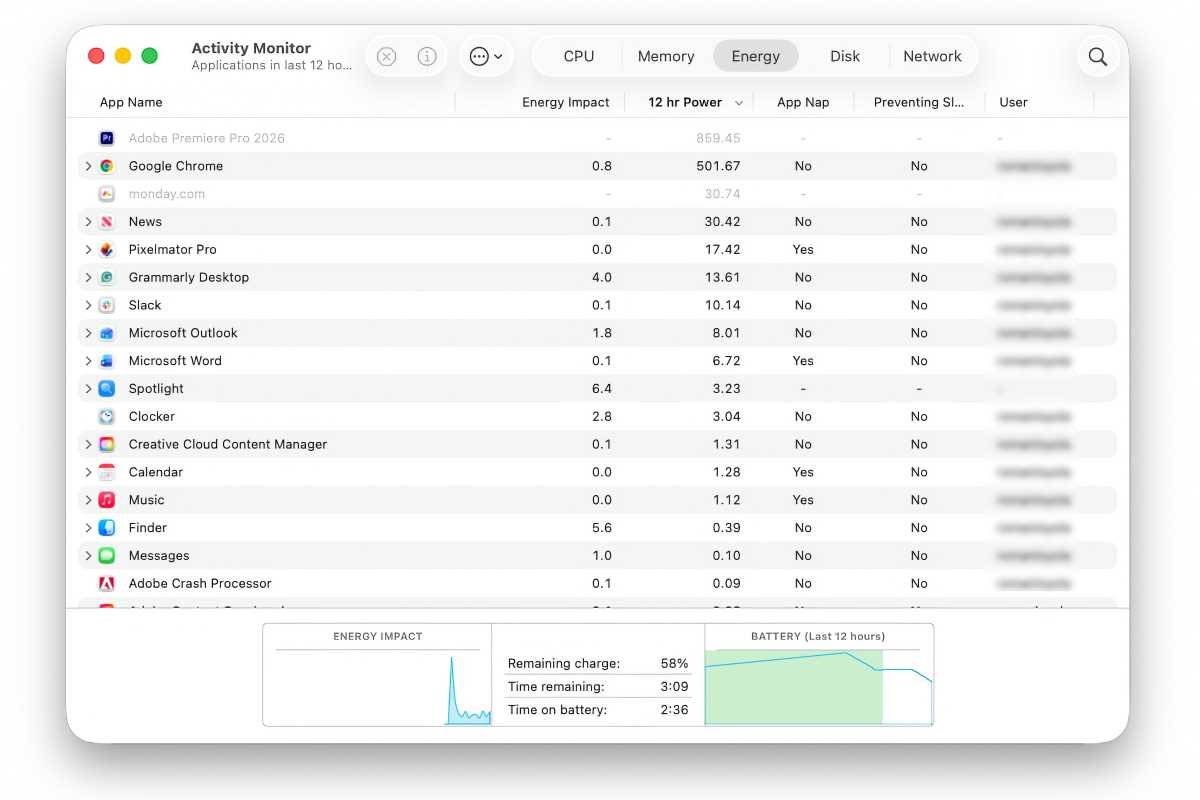
The Energy section of the Mac’s Activity Monitor utility provides information on apps and the amount of heat they generate while processing.
Foundry
On some Intel Macs, you can use Terminal or a free utility for basic temperature monitoring. In Terminal enter the following command and press return:
sudo powermetrics --samplers smc |grep -i "CPU die temperature"
(Note that those quotation marks are straight double-quotes.) Enter your administrative password when prompted. This will provide a continuous temperature reading of the CPU’s temperature. Press Control-C to stop the monitoring.
You can also install the free app Fanny (not the most perfect name for U.K. and other Commonwealth Mac owners), which offers a simple drop-down set of information in the menu bar or as a notifications widget. Details include the average CPU and GPU temperatures along with current fan speeds.
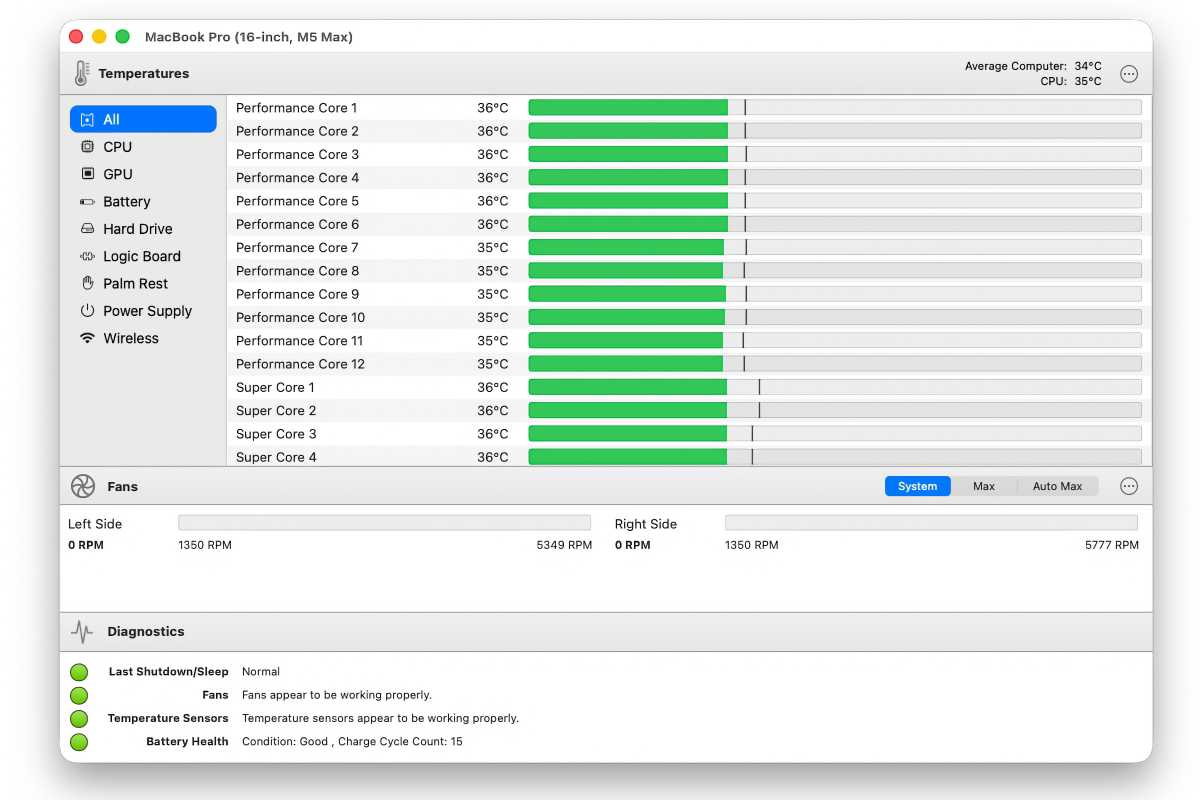
TG Pro provides an enormous amount of detail on demand and control of built-in fans, but uses color coding and a menu bar summary for at-a-glance status.
Foundry
For any Intel Mac and M-series Mac, the utility TG Pro ($20 but often on sale for $10) provides detailed monitoring and fan control. You can see the temperature recorded by every sensor in your Mac and for hard disks and SSDs that support the industry-standard SMART diagnostics. Information and controls are available both in a standard app window and a drop-down menu bar. That bar shows the highest port and CPU temperature and the current fan rotation.
You can also monitor the speed of internal fans and override Apple’s settings. This includes creating rules for when fans run and how fast they run. The app comes with a preset rule that turns the blades up to their maximum rotation if the highest temperature of any CPU parameter is at least 158°F (70°C).
