


Marciobnws/Shutterstock
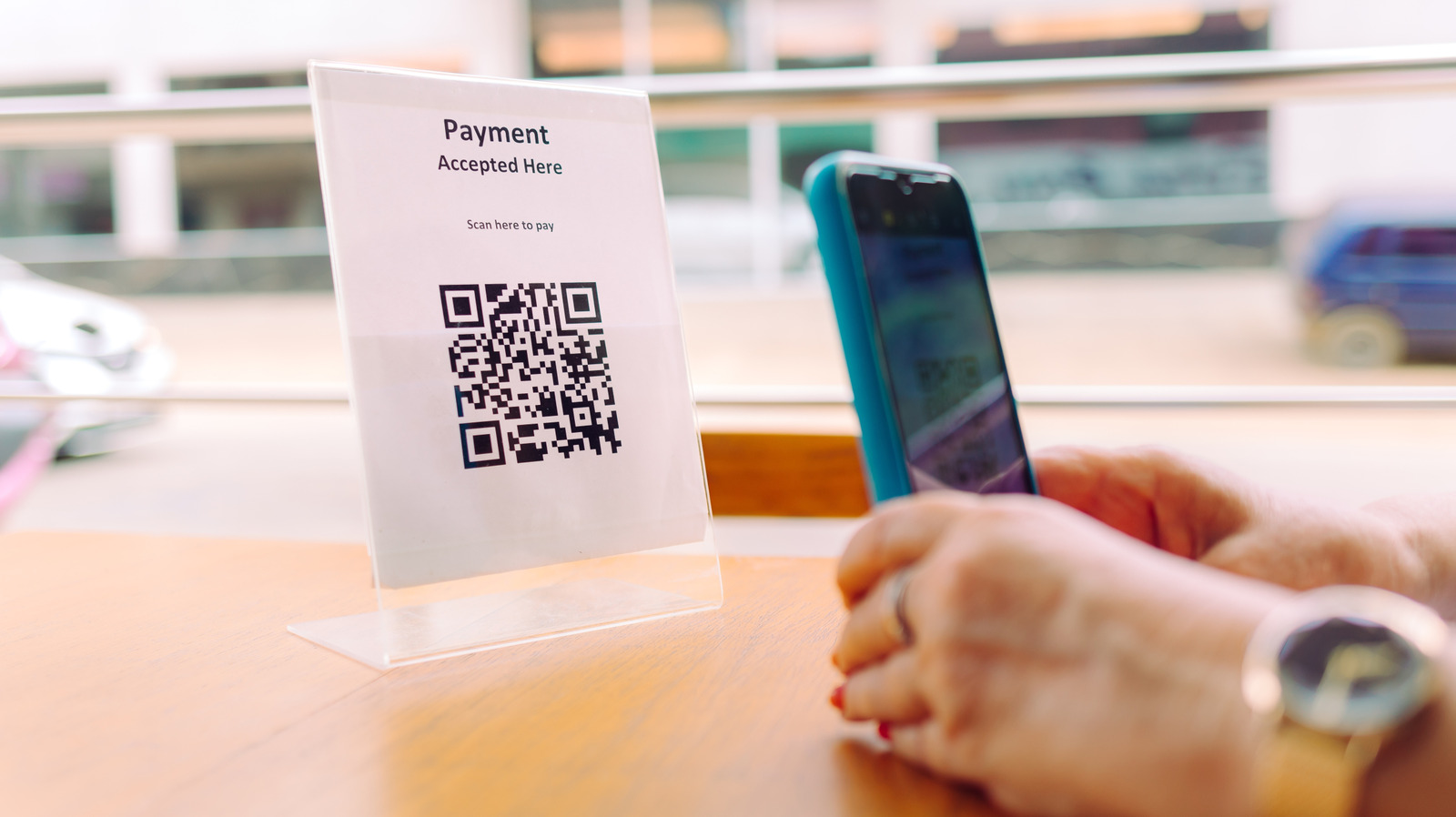
The odds are pretty decent that if you own a smartphone, you’ve had to deal with a QR code at some point. They’re seemingly everywhere now, from restaurants to flyers, but sometimes they leave you flailing your phone around awkwardly trying to get the camera to scan them.
Quick Response (QR) codes feel a bit like magic when they work right, which makes sense because they came from a board game. When they don’t work, though, they get annoying fast. Fortunately, QR code issues are pretty easy to work around if you understand them.
The problem with QR codes is that when one doesn’t work, most folks just assume that it’s broken or their camera is glitching. But really, most failed scans happen because of simple issues like it being too bright (or dark), a camera’s lens being dirty, or holding the phone at the wrong distance from a code. In fact, you’d probably be surprised how making quick tweaks to lighting or even phone settings can get codes to work right away, totally fine. Let’s jump in and take a look at some of the most common culprits behind failed QR code scans, and learn how to troubleshoot them.
Poor lighting and screen glare
PeopleImages/Shutterstock
One of the biggest reasons a phone’s camera struggles to read a QR code is bad lighting, including harsh glare. In order to properly read a QR code, there needs to be a sharp enough visual contrast separating a code’s dark squares from its light background. In a dim restaurant or bar, for example, it’s likely your camera’s sensor won’t have enough light to lock on to the pattern.
On the flip side, super bright environments are just as much of an issue. If a QR code is on something like a glossy menu or non-matte TV screen, especially if there’s direct sunlight or bright bulbs overhead, the light will bounce right off those surfaces. Your phone’s camera strugge to register a QR code with such a washed out contrast.
Fortunately, fixing lighting problems is a cinch! In dark spaces, don’t be afraid to turn on your flashlight or use the brightness from a friend’s phone so yours can see the code better. If there’s heavy glare, tilt your phone at a different angle or use your free hand to cast a shadow over the code to block that nasty reflection. Also try tapping the screen right over the grid; that forces the camera to recalculate its focus and exposure.
Awkward distances and digital zoom
Towfiqu ahamed barbhuiya/Shutterstock
Another roadblock is holding your phone too close to or far away from the code. To decode a QR code, the camera needs a clear view of the three alignment squares in the corners of the pattern (and there’s a reason they have three squares instead of four). Standing far from a poster with a QR code makes those squares too tiny for the sensor. Likewise, shoving your phone an inch away from a tiny code on a receipt pushes the lens inside its minimum focus distance making everything blurry. It just doesn’t work.
When a code seems too far away, most folks tend to just pinch and zoom in on their phone. But there’s a problem with this method: digital zoom on most phones is likely to crop the image and add noise; that destroys the crisp edges the scanner needs to read the code, putting you more or less back at square one.
The key is to be at the proper distance from the code, getting closer to distant signs or pulling your phone back a few inches from smaller, close-up signs. This lets the lens focus, and is this issue’s best fix. Be sure to hold your phone steady, too, so the autofocus system has enough time to lock onto the grid and pop up your link.
Dirty camera lenses and damaged codes
iMarzi/Shutterstock
If you have gunk on your glasses or sunglasses, it’s hard to see stuff. The same logic applies to your phone’s camera. And by spending all day sliding in and out of pockets and bags, it’s easy for smudges, lint, crumbs, and assorted other gunk to end up covering your phone’s camera glass. Even a slight smudge on a lens can scatter and distort incoming light, which then makes it hard or even downright impossible for your phone’s camera to successfully scan that QR code.
Damage to the code itself is another common issue. Paper codes get wrinkled, outdoor stickers fade from the sun, metal engravings can bend if dropped, and receipts can end up with a crease right down the middle. And issues like spotty ink and deep folds can break the code’s pattern down beyond recognition so no one can read it.
But before you get sad and blame the technology, take a minute to clean your phone’s camera lens safely. And again, same as with cleaning glasses, this fix can sort things out better than you’d expect. Otherwise, if the printed code is tough to read, fall back on looking up the company’s or event’s website manually, asking for a physical menu instead, and so on.
Disabled settings and tricky color schemes
Lexalexaclub/Getty Images
If none of the other issues are to blame, the problem might instead be your phone’s software. Newer Apple and Android phones have QR scanning baked into their native camera apps, but that feature can get switched off by accident. Additionally, camera apps can sometimes struggle with creative QR codes that use inverted colors or lower-contrast shades (especially pastels) that blend together.
It’s easy to check your phone’s settings to find out whether QR scanning is still enabled. On an iPhone, go to the main Settings menu, select Camera, and make sure the Scan QR Codes toggle is on. Android users have a similar toggle; check it by opening the camera, tapping the Settings icon, then Camera scan suggestions and turn that on.
If the setting is on but your camera still isn’t picking up a weirdly-colored code, you may want to try a different scanning tool such as a dedicated third-party QR code app. These might have a better chance at reading more stylized codes. Now, armed with more knowledge about how QR codes work and their issues, you can hopefully troubleshoot them.
