


Karlis Dambrans/Shutterstock
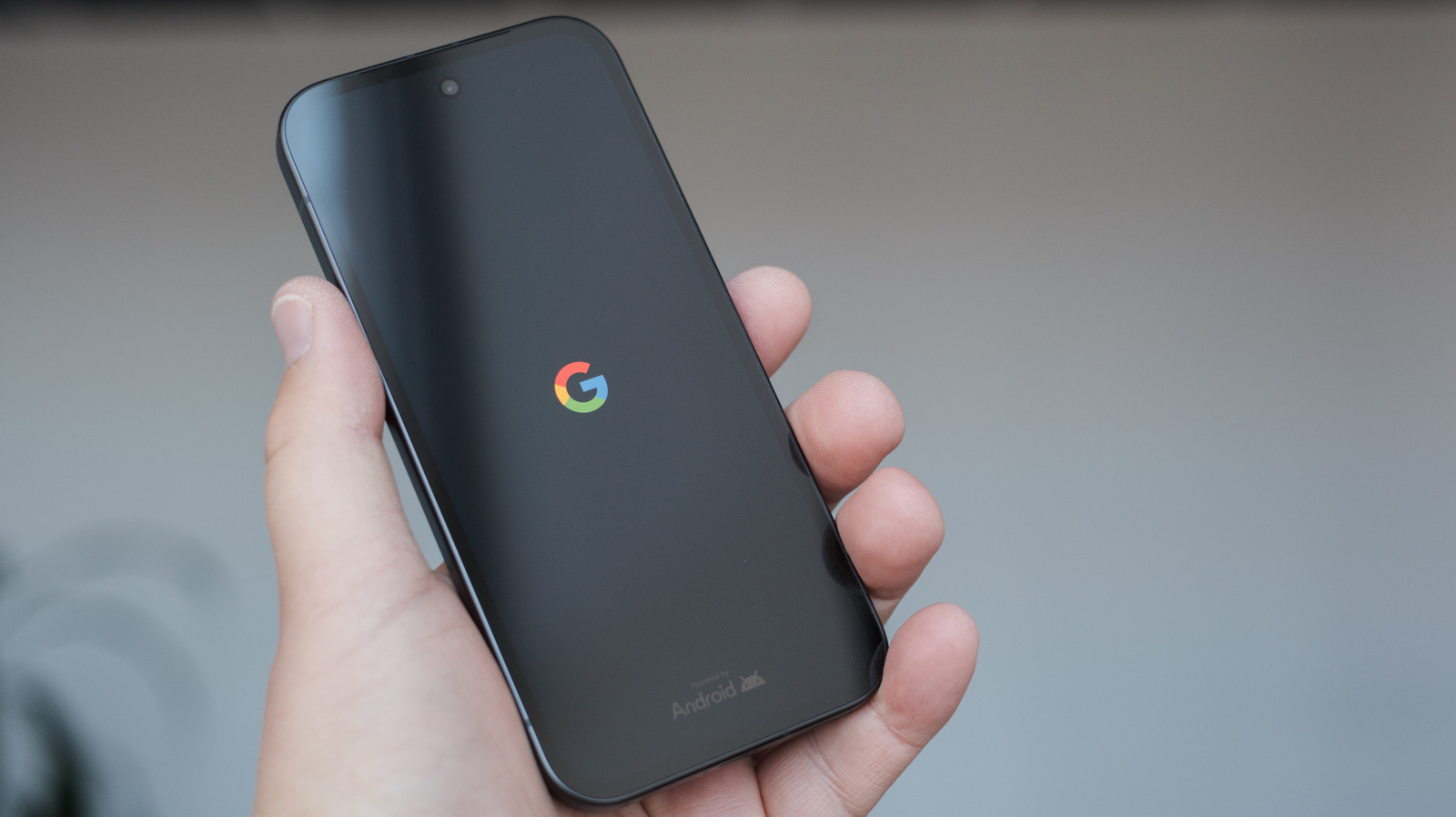
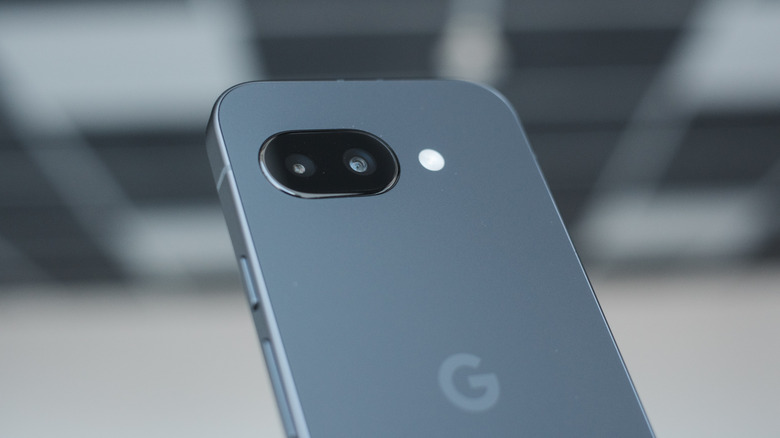
Google’s Pixel smartphones come with a dedicated troubleshooting app, which launched in 2023. But it isn’t quite a separate app that you need to install. Rather, Google has integrated its technical support features directly into your Google Pixel settings. If you are still using a long-lasting older Pixel device, like a Google Pixel 5 or earlier, you won’t have access to this toolset. It’s only available on Google Pixel 6 and newer, and some features can only be accessed if you have Android 14 or later installed.
The Device health and support menu provides general health status, temperature, and battery, along with performance-related and charging diagnostics. It’s a feature you’ll want to dive into if your Google Pixel feels off during normal usage, or if you need to double-check your Pixel’s battery drain or temperature issues. It’s also not to be confused with dialing *#*#7287#*#*, which displays a range of options to repair your Google Pixel.
This app isn’t the only way to get support for your Pixel. If you want to get conversational help through the “Need help with your Pixel?” field, you can do so with the same feature if you own a Google Pixel 9 or later.
What can you use the Device health and support menu for?
Karlis Dambrans/Shutterstock
When you open the Device health and support menu, you have four main options, according to Google: Overall device status, Feature status, Features to check, and Other options. However, you won’t always see these labeled as exact options in the menu.
For instance, the health statistics are displayed as separate pills at the top after the overall status check (it should say something like “Looks good” if your Google Pixel is healthy), which show the device temperature and storage. You can also use this menu to find new software updates and do Bluetooth diagnostics for connected devices.
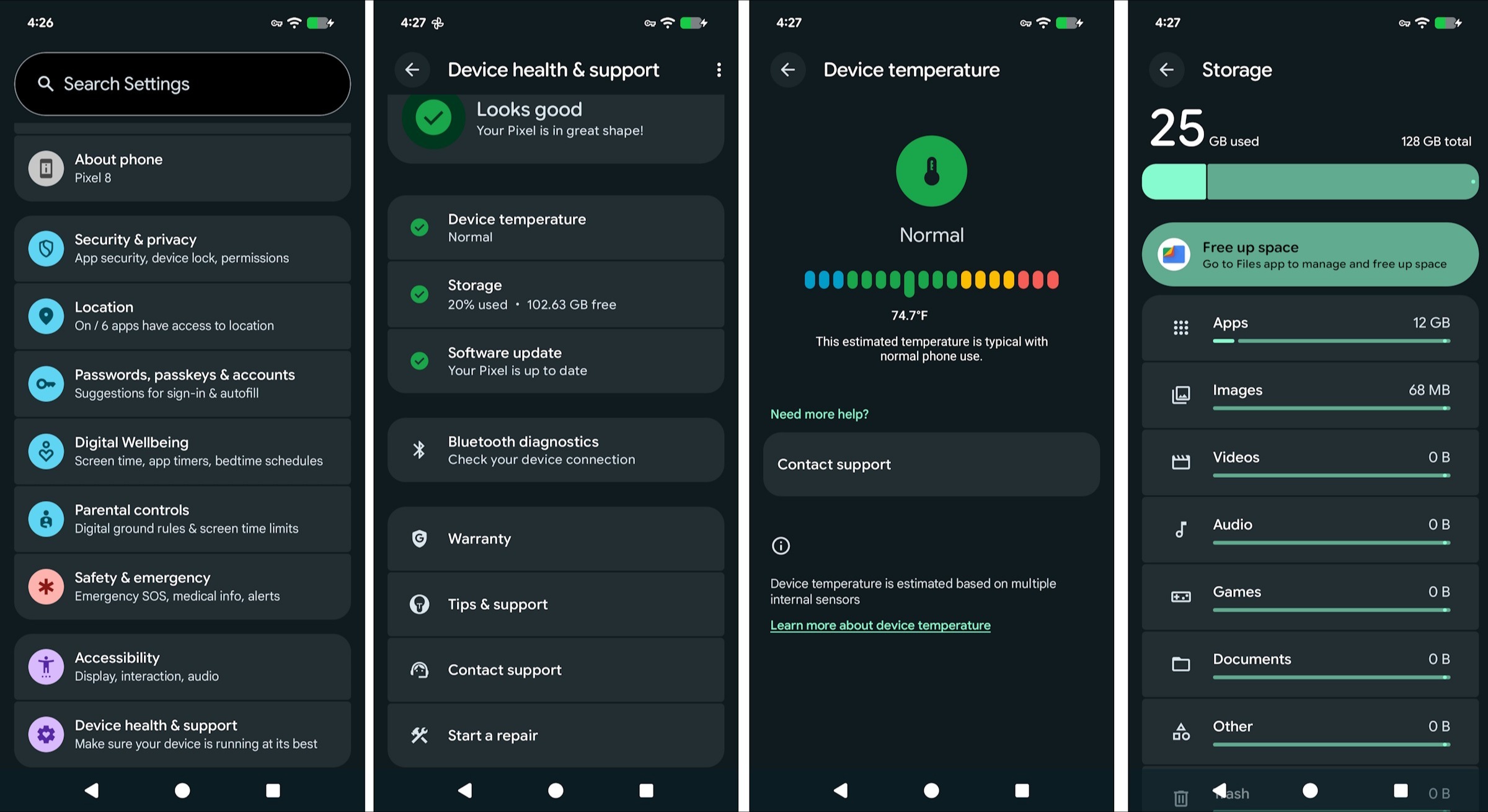
The Device health and support menu is also a good place to check your warranty status and see your IMEI, if you need that information. You can use the menu to request a repair or contact support for additional help without going through Google’s classic Help Center channels. However, just be aware that the contact support will require sharing device data with Google to initiate the process.
Use repair mode for your Pixel phone
Mashha/Shutterstock
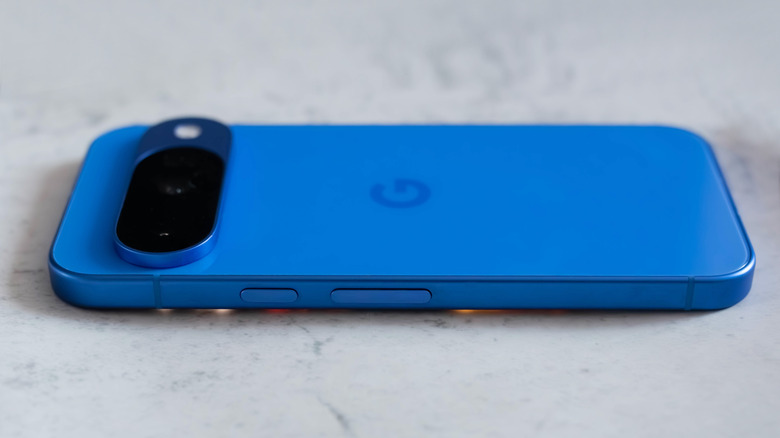
The Device health and support menu and in-house diagnostic tools are a great way to contact Google if you notice something is immediately wrong with your device. Though if you do use the Start a repair option, you’ll want to ensure your personal data remains private. Only certain phones will have repair mode available, and it requires Android 14 or later.
The repair mode lets technicians diagnose your issues without data loss during a factory reset. Entering repair mode is pretty easy, and exiting it is too. To enter or exit repair mode, simply go to settings, then tap System > Repair mode. While repair mode is supposed to protect your data, if anything is physically changed to your storage during the process, you might still lose your data. You should still regularly back up your device and do so as a precaution before sending it in.
